The Complete Guide to Essential Work From Home Tech and Productivity Gadgets: Transform Your Home Office into a Professional Workspace
Table of Contents
- Introduction: The Remote Work Revolution
- 1. Essential Computing Hardware for Remote Work
- 2. Monitors and Display Solutions
- 3. Audio Equipment for Crystal Clear Communication
- 4. Webcams and Video Conferencing Tools
- 5. Ergonomic Furniture and Comfort Solutions
- 6. Lighting and Environmental Control
- 7. Connectivity and Network Equipment
- 8. Productivity Software and Digital Tools
- 9. Organization and Storage Solutions
- 10. Creating Your Ideal Home Office Setup
- Conclusion: Building Your Perfect Remote Workspace
- Frequently Asked Questions
Introduction: The Remote Work Revolution
The landscape of work has undergone a seismic transformation that fundamentally altered where and how millions of people perform their jobs. Remote work evolved from rare privilege or temporary arrangement into mainstream reality embraced by organizations and workers worldwide. This shift—accelerated by global events but sustained by its inherent advantages—created massive demand for home office technology and productivity tools enabling professional-quality work from residential spaces never designed as workplaces.
Working from home offers remarkable benefits that traditional office environments cannot match. The elimination of commuting saves hours daily while reducing stress, expenses, and environmental impact. The flexibility to structure work around personal needs and peak productivity periods rather than arbitrary office schedules improves both work quality and life satisfaction. The ability to create customized work environments optimized for individual preferences and needs surpasses the compromises of shared office spaces. And for many people, the comfort and autonomy of working from home dramatically enhances focus, creativity, and overall job satisfaction compared to traditional office environments with their interruptions, politics, and constraints.
However, these benefits only materialize when home workspaces are properly equipped with appropriate technology and tools. Working from a laptop balanced on your lap while sitting on a couch might suffice for occasional remote work, but sustained professional performance requires dedicated space, proper equipment, ergonomic furniture, reliable technology, and thoughtful organization transforming residential areas into functional, comfortable, productive workspaces.
The challenge many remote workers face is determining which equipment and tools genuinely enhance productivity and which represent unnecessary expenses or trendy gadgets providing minimal real-world value. The home office technology market has exploded with countless products claiming to revolutionize remote work—from basic necessities to specialized tools to questionable gimmicks. Marketing often obscures practical utility, making it difficult to distinguish essential investments from optional luxuries or outright waste.
While the following demonstration showcases these cutting-edge productivity gadgets in action, the real workspace transformation secrets lie in the exclusive details found further down in this article—insights you likely haven't discovered yet:
This comprehensive guide cuts through the confusion and hype surrounding work-from-home technology, providing everything you need to create a professional, productive, comfortable home office regardless of your budget, space constraints, or specific work requirements. We’ll explore essential computing hardware including laptops, desktops, tablets, and accessories determining your core work capabilities; monitor and display solutions dramatically improving productivity through expanded screen real estate and better visual quality; audio equipment ensuring clear communication during calls and meetings while minimizing distractions; webcams and video conferencing tools presenting you professionally in virtual meetings; ergonomic furniture and comfort solutions protecting your health during extended work sessions; lighting and environmental controls creating pleasant, productive workspaces; connectivity and network equipment providing reliable, fast internet access crucial for remote work; productivity software and digital tools organizing work and enhancing efficiency; organization and storage solutions maintaining tidy, functional workspaces; and systematic approaches to creating ideal home office setups matching your specific needs, work style, and constraints.
Each section provides detailed analysis based on extensive research, real-world testing, and experiences from thousands of remote workers across diverse professions and work styles. We emphasize practical utility over impressive specifications—it doesn’t matter how advanced equipment appears on paper if it doesn’t actually solve problems you face or integrate smoothly into your workflow. We identify which investments deliver genuine value versus marketing-driven purchases providing minimal benefit relative to their costs.
The goal isn’t pushing you toward the most expensive equipment or convincing you that elaborate home offices are essential for everyone. Rather, we’re providing comprehensive information enabling informed decisions about which investments genuinely improve your remote work experience, productivity, health, and satisfaction while avoiding unnecessary expenses on equipment you won’t use or that provides marginal benefits not justifying their costs.
Different remote workers have vastly different needs based on their professions, work styles, physical space, budgets, and personal preferences. A software developer requires different equipment than a graphic designer. Someone making dozens of video calls daily needs different tools than someone primarily working independently with occasional meetings. People with dedicated home offices can optimize differently than those working from dining tables or bedrooms. Understanding these differences helps you make appropriate choices rather than following generic advice that may not match your situation.
Budget considerations significantly affect equipment decisions, but “best” doesn’t always mean “most expensive.” Many reasonably priced options provide excellent value, delivering the majority of benefits that premium alternatives offer at a fraction of the cost. Understanding where to invest more for meaningful quality improvements versus where budget options suffice enables building effective home offices without unnecessary expenditure. We’ll identify these distinctions throughout, helping you allocate limited budgets optimally.
The work-from-home technology landscape continues evolving rapidly as manufacturers recognize the massive remote work market. New products launch constantly, existing equipment improves through updates and iterations, and prices often decline as competition increases. Staying informed about significant developments helps you make timely purchasing decisions, though waiting indefinitely for “better” future options prevents benefiting from good solutions available now. The key is balancing current needs against future possibilities, making smart investments now while remaining flexible to adopt genuinely revolutionary improvements when they emerge.
Remote work success extends beyond just equipment—it requires establishing routines, maintaining boundaries between work and personal life, communicating effectively with distributed teams, and managing the psychological challenges of working in isolation or dealing with household distractions. However, having appropriate technology and properly configured workspace provides the foundation enabling these practices to flourish. Poor equipment creates constant friction, frustration, and reduced productivity regardless of how well you manage other remote work aspects.
The statistics supporting proper home office investment are compelling. Studies show that ergonomic equipment reduces injury risk and improves comfort, leading to better focus and longer productive work sessions. Quality audio and video equipment dramatically improves communication effectiveness, reducing misunderstandings and meeting fatigue. Proper lighting reduces eye strain and improves mood. Reliable, fast internet eliminates frustrating delays and enables seamless collaboration. And thoughtfully organized workspaces reduce time wasted searching for items or dealing with clutter distractions.
These benefits accumulate significantly over time. Saving just 30 minutes daily through better equipment and organization equals over 120 hours annually—essentially a month of working days. Reducing physical discomfort through ergonomic furniture prevents health issues that could sideline you for weeks. Improving communication quality through better audio/video strengthens relationships with colleagues and clients, potentially affecting career advancement. The cumulative value of proper home office investment far exceeds the initial costs when measured over years of remote work.
This guide serves multiple audiences—people transitioning to permanent remote work for the first time needing to establish home offices from scratch; experienced remote workers wanting to upgrade from basic setups to optimized workspaces; hybrid workers splitting time between home and office needing efficient home work environments; freelancers and entrepreneurs building professional home offices on limited budgets; and anyone seeking to improve their existing home office through strategic equipment additions or replacements.
Your journey to an optimal home office begins with understanding what’s possible, what different equipment actually does, which investments provide the most value for your specific situation, and how to systematically build or improve your workspace without overwhelming yourself or your budget. Start by assessing your current situation—what works well, what causes frustration, what limits your productivity, what affects your comfort or health. These pain points represent opportunities where strategic equipment investments can provide genuine value.
The transformation from makeshift working space to professional home office doesn’t require massive budgets or perfect conditions. It requires thoughtful analysis of your needs, strategic investment in equipment providing the most value, proper setup and configuration of tools you acquire, and continuous refinement based on experience and changing requirements. Small improvements compound over time—better audio for calls, a second monitor expanding workspace, ergonomic chair reducing back pain, improved lighting reducing eye strain—collectively creating dramatically better remote work experiences.
Remote work represents the future for millions of workers, and that future demands proper equipment, thoughtful setup, and professional workspaces enabling sustained high performance. The question isn’t whether to invest in home office equipment—inadequate workspaces inevitably compromise productivity, health, and satisfaction. The relevant questions are which specific equipment best serves your needs, how to allocate limited budgets optimally, and how to create workspaces supporting not just adequate performance but genuine excellence in your remote work.
Let’s explore this landscape together, discovering the technology, tools, and approaches that transform spare bedrooms, dining tables, or corners of living rooms into professional workspaces enabling you to do your best work from the comfort of home. Your ideal home office awaits—let’s build it strategically, thoughtfully, and effectively.

1. Essential Computing Hardware for Remote Work
Your computer serves as the foundation of remote work capability—every digital task, communication, and deliverable flows through this core piece of equipment. Choosing appropriate computing hardware dramatically affects your productivity, capability, and frustration levels throughout countless work hours.
Laptop vs Desktop Considerations
The fundamental decision between laptop and desktop computers involves balancing portability, performance, upgradability, and cost. Neither option is universally superior—optimal choice depends entirely on your specific needs, work style, and circumstances.
Laptops provide essential portability enabling work from multiple locations—home office, couch, dining table, coffee shops, while traveling, or transitioning between home and traditional offices for hybrid workers. The all-in-one nature means no separate monitor, keyboard, or mouse required for basic functionality, simplifying initial setup and reducing desk space requirements. Modern laptops deliver impressive performance rivaling desktops for many tasks, with high-end models handling demanding applications like video editing, 3D modeling, or software development.
However, laptops compromise in several areas. Performance per dollar lags desktop equivalents—you pay premiums for miniaturization and portability. Thermal constraints limit sustained performance as compact designs struggle dissipating heat from powerful components. Upgradability is limited or impossible—RAM and storage might be soldered, and processors and graphics cannot be upgraded at all. Ergonomics suffer when using laptops as primary workstations—screens at wrong heights, cramped keyboards, and awkward trackpad usage create physical strain during extended sessions. And laptop keyboards, trackpads, and small screens reduce productivity compared to full-sized peripherals and large displays.
Desktop computers maximize performance per dollar, delivering substantially more computing power at given price points than laptop equivalents. Superior cooling enables sustained high performance without thermal throttling. Complete upgradability means improving components individually rather than replacing entire systems—add RAM, upgrade graphics cards, install faster storage, or replace processors extending system lifespan and capability. Ergonomics are completely customizable—choose ideal monitors, keyboards, mice, and positioning independent of computer itself.
The disadvantages include complete lack of portability—desktops remain wherever positioned, requiring dedicated space. The multi-component nature demands more desk space and cable management than laptops’ self-contained designs. Initial setup complexity exceeds laptops’ plug-and-play simplicity. And moving desktops between locations requires disassembly, transportation, and reassembly rather than simply closing a laptop lid.
Many remote workers find optimal solutions combine both—laptops for portability and flexibility, connected to external monitors, keyboards, and mice when working from primary home offices. This hybrid approach provides desktop-like ergonomics and productivity at home while maintaining laptop portability for travel, different work locations, or working in various rooms. Laptop docking stations facilitate seamless transitions—simply connect one cable when arriving at desk, instantly accessing all peripherals and displays.
Performance Requirements by Work Type
Computing needs vary dramatically based on profession and specific tasks. Understanding your requirements prevents both overspending on excessive performance you’ll never use and underinvesting in insufficient capability limiting productivity.
Basic office work—email, web browsing, document editing, spreadsheets, video calls—requires modest computing power. Budget to mid-range laptops or desktops handle these tasks effortlessly. Specifications like Intel Core i3/i5 or AMD Ryzen 3/5 processors, 8-16GB RAM, and integrated graphics suffice. This category includes administrative work, sales, customer service, writing, and most non-specialized professional roles.
Creative professional work—graphic design, photo editing, video production, 3D modeling, animation—demands substantially more performance. These applications benefit from powerful processors (Intel Core i7/i9, AMD Ryzen 7/9), generous RAM (16-32GB minimum, 64GB+ for heavy video work), dedicated graphics cards (NVIDIA or AMD), and fast storage (NVMe SSDs). Skimping on specifications for creative work creates constant frustration through slow rendering, laggy interfaces, and time wasted waiting for processes to complete.
Software development and programming requirements depend on specific technologies and project scales. Basic web development runs fine on modest hardware, but compiling large projects, running multiple virtual machines or containers, or testing applications demands substantial RAM (16-32GB), fast processors with multiple cores, and fast storage. Database work, data science, and machine learning benefit from even more powerful configurations.
Data analysis and financial modeling using large datasets require ample RAM (16GB minimum, 32GB+ ideal), fast processors, and quick storage enabling responsive interaction with massive spreadsheets or analytical tools.
Video conferencing, while not performance-intensive alone, should be considered alongside other simultaneous activities. If you’re on calls while also running applications, editing documents, or screen sharing, ensure hardware handles multitasking without degrading video quality or overall system responsiveness.
Key Specifications Explained
Understanding what different specifications actually mean helps you evaluate computers effectively rather than being confused by marketing jargon.
Processors (CPUs) handle general computing tasks—the brain of your computer. Modern processors from Intel (Core i3/i5/i7/i9) or AMD (Ryzen 3/5/7/9) provide excellent performance, with higher numbers indicating more power. Core count matters for multitasking—more cores enable running more applications simultaneously. For most work, mid-range processors (Core i5/Ryzen 5) provide excellent balance between cost and capability.
RAM (Memory) stores data for active programs. More RAM enables running more applications simultaneously and working with larger files without slowdowns. 8GB represents functional minimum for basic work, 16GB suits most professionals comfortably, 32GB serves creative professionals and heavy multitaskers, and 64GB+ targets specialized applications like video editing or virtual machines.
Storage affects boot times, application loading, and file access speed. SSDs (Solid State Drives) provide dramatically faster performance than traditional hard drives, making them essential for pleasant computing experiences. NVMe SSDs offer even faster performance than standard SATA SSDs. Capacity needs depend on file sizes you work with—256GB suffices for cloud-heavy workflows, 512GB suits most users comfortably, 1TB+ serves those storing large media files or extensive local data.
Graphics processing (GPU) matters primarily for visual work—video editing, 3D modeling, graphics design, or gaming. Integrated graphics built into processors handle basic tasks adequately. Dedicated graphics cards from NVIDIA or AMD provide substantially more power for creative applications, with higher-end models offering correspondingly more capability.
Essential Peripherals and Accessories
Regardless of computer choice, essential peripherals dramatically improve ergonomics, productivity, and overall experience.
External keyboards enable proper typing posture with hands at comfortable heights and angles. Mechanical keyboards provide excellent typing feel and durability, though quality membrane keyboards work well for many users. Wireless keyboards reduce cable clutter, while wired versions eliminate battery concerns and input lag.
Mice or trackpads allow precise control and navigation more efficiently than laptop trackpads alone. Ergonomic mice reduce strain during extended use. Vertical mice position hands more naturally. Track balls offer alternatives for people with specific ergonomic needs or preferences.
Laptop stands elevate screens to eye level when using laptops as primary workstations, dramatically improving neck posture. Simple fixed stands cost $20-40, while adjustable stands providing multiple height and angle options cost $40-80.
Docking stations consolidate connectivity—single cable connection to laptops provides power, display outputs, USB ports, ethernet, and audio through one connection, dramatically simplifying desk setup and enabling seamless laptop connection when arriving at desks and disconnection when leaving.
USB hubs expand connectivity when computers lack sufficient ports. Powered USB hubs support multiple high-power devices simultaneously without overwhelming computer USB power limits.
Tablet Supplements
Tablets serve valuable supplementary roles for certain remote workers, though they rarely replace computers for primary work.
iPads with keyboard cases provide highly portable secondary computing for email, light document work, note-taking, or casual browsing while maintaining tablet flexibility for media consumption and touch-based applications. Professional apps like Microsoft Office, Adobe creative tools, and collaboration platforms work increasingly well on iPads.
Drawing tablets and pen displays serve creative professionals, enabling natural digital illustration, photo retouching, or design work with pressure-sensitive styluses providing far more control than mice.
E-ink tablets for reading and note-taking reduce eye strain compared to backlit screens while providing paper-like reading experiences for document review or research-heavy work.
Shop on AliExpress via link: wholesale-laptop-accessories
Computing hardware represents your most fundamental work-from-home investment, affecting everything you do digitally. Choosing appropriately powerful yet cost-effective computers matching your specific needs provides the foundation for productive remote work. Supplement with ergonomic peripherals addressing laptop limitations, and you’ll establish computing setups enabling comfortable, efficient work throughout long sessions. The goal isn’t maximal specifications or excessive spending but rather thoughtful matching of capability to requirements, ensuring your technology empowers rather than limits your work.
2. Monitors and Display Solutions
Screen real estate dramatically impacts productivity—Multiple studies demonstrate that additional display space enables significantly faster task completion, easier multitasking, and reduced context switching compared to working on single laptop screens. Research from University of Utah shows productivity gains of 20-30% with dual monitors. Monitor investment represents one of the highest-value upgrades for remote workers, often providing more perceivable productivity improvements than computer upgrades costing far more.
The Productivity Case for Multiple Monitors
Working on a single laptop screen, typically 13-15 inches, forces constant window shuffling—minimize email to see document, hide document to check spreadsheet, close spreadsheet to view web browser. This continual context switching fragments focus and wastes time. Research suggests people working on single small displays spend 15-20% of their time simply managing windows rather than actual productive work.
Adding even one external monitor transforms this experience. Keep reference materials visible on one screen while working on another. Display email or chat on one monitor while main work occupies another. View video calls on one screen while taking notes or screen sharing from another. The ability to see multiple contexts simultaneously dramatically reduces cognitive load and time wasted toggling between applications.
The productivity benefits increase with additional monitors, though with diminishing returns. Moving from one to two displays provides the largest single improvement—perhaps 20-30% productivity gain for information workers constantly referencing multiple sources. Adding a third monitor provides additional benefits but smaller incremental gains, most valuable for specific workflows like trading, data analysis, or content creation requiring many simultaneous information streams.
Beyond three monitors, benefits become highly specific to unusual workflows—software developers reviewing code across multiple files, graphic designers comparing iterations, video editors monitoring multiple feeds. Most professionals find sweet spots between one external monitor (minimum for comfortable productivity) and three displays (maximum before diminishing returns exceed benefits for typical work).
Monitor Specifications That Matter
Understanding display specifications helps you choose monitors delivering capabilities you’ll actually use rather than paying for specs providing minimal perceptible benefit.
Screen size affects both viewing area and desk space requirements. 24-inch monitors provide substantial improvement over laptops without overwhelming desks. 27-inch displays offer ideal balance between screen real estate and reasonable physical size for most users. 32-inch and larger monitors suit specific needs like video editing or provide immersive experiences but require deeper desks for comfortable viewing distances.
Resolution determines image sharpness and how much information fits onscreen. 1920×1080 (Full HD) remains adequate for 24-inch displays, providing reasonable sharpness and compatibility with lower-powered computers. 2560×1440 (QHD or 1440p) offers excellent balance at 27 inches, providing noticeably sharper text and images while requiring moderate graphics capability. 3840×2160 (4K or UHD) delivers maximum sharpness at 27 inches and above but demands powerful graphics for smooth performance and may make interface elements uncomfortably small without scaling.
Panel technology affects image quality, viewing angles, and color accuracy. IPS panels provide excellent color accuracy, wide viewing angles, and consistent image quality—ideal for general professional use and creative work. VA panels offer superior contrast and deeper blacks than IPS, beneficial for content consumption though typically with narrower viewing angles. TN panels provide fastest response times favoring gamers but inferior color accuracy and viewing angles making them poor choices for professional work.
Refresh rate indicates how many times per second screens update images. 60Hz suffices for office work, writing, and most professional applications. Higher refresh rates (120Hz, 144Hz+) benefit gamers and provide slightly smoother desktop interaction but offer minimal advantages for typical remote work, not justifying price premiums for most users.
Ergonomic adjustability enables positioning displays optimally. Height adjustment ensures screens at eye level preventing neck strain. Tilt allows angling displays for comfortable viewing without glare. Swivel enables sharing screens with others or adjusting for lighting changes. Pivot permits portrait orientation useful for document reading or coding. Monitors lacking adjustable stands often require separate monitor arms or stand replacements to achieve proper positioning.
Connectivity determines what devices can connect and at what resolutions. HDMI works with virtually everything, supporting 4K at 60Hz on HDMI 2.0. DisplayPort provides similar capability with better support for multiple displays from single computers. USB-C offers single-cable connection to compatible laptops, providing video, data, and power delivery simultaneously—remarkably convenient for laptop users. Built-in USB hubs in monitors expand connectivity conveniently.
Monitor Configurations for Different Work Styles
Optimal monitor setups vary based on specific work and preferences.
Single external monitor plus laptop screen serves many remote workers excellently, providing dual-display benefits while maintaining laptop portability and minimizing costs. Position external monitor directly in front as primary display, with laptop screen secondary for communications, music, monitoring, or reference materials.
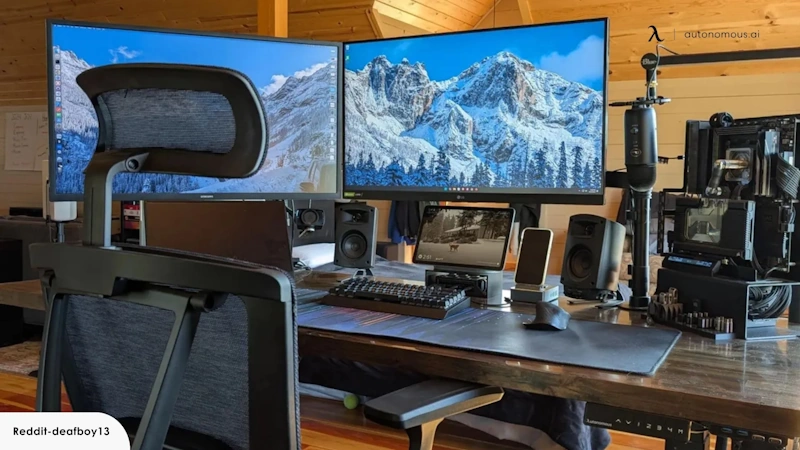
Dual external monitors (plus optional laptop screen) suits professionals constantly working across multiple applications or documents simultaneously. Ideal configurations position primary monitor directly in front with secondary at 30-45 degree angle. Some users prefer identical monitors for consistency while others use larger primary displays with smaller secondary screens.
Ultrawide monitors (21:9 or 32:9 aspect ratios) provide screen real estate equivalent to two displays in single seamless panels without bezels interrupting views. The 34-inch ultrawide roughly equals two 24-inch displays, while 49-inch super-ultrawide matches two 27-inch monitors. The uninterrupted workspace benefits certain workflows, though some people miss the physical separation that multiple monitors provide for mental organization.
Vertical or portrait orientation monitors suit specific work—reading long documents, coding, browsing social media or long web pages. Some professionals use one landscape primary monitor with portrait secondary for these specialized tasks.
Budget-Friendly Monitor Options
Quality displays needn’t break budgets. Numerous excellent monitors at various price points deliver strong value.
Budget tier ($150-250) includes serviceable 24-inch 1080p displays from brands like Dell, HP, ASUS, or AOC. These provide massive improvements over laptop screens despite lacking premium features like USB-C, extensive adjustability, or exceptional color accuracy. Perfectly adequate for office work, writing, email, and general productivity.
Mid-range tier ($250-450) delivers excellent value with 27-inch 1440p monitors offering good color accuracy, reasonable ergonomic adjustability, and professional build quality. This sweet spot provides most benefits of premium monitors without luxury pricing. Brands like LG, Dell, BenQ, and ASUS offer compelling options in this range.
Premium tier ($450-800) features exceptional color accuracy for creative professionals, USB-C connectivity with power delivery for clean laptop integration, extensive ergonomic adjustment, and premium build quality. These monitors justify costs for professionals whose work demands excellent color or who highly value convenience features.
Professional reference monitors ($800+) target photographers, videographers, and graphic designers requiring factory color calibration, wide color gamuts covering professional color spaces, and consistent accuracy. Unless color-critical professional work is your livelihood, these expensive displays provide minimal practical benefits over quality mid-range monitors for most users.
Monitor Placement and Ergonomics
Even excellent monitors harm health and productivity if poorly positioned. Proper setup requires attention to placement, angles, and heights.
Position monitors at arm’s length distance—roughly 20-30 inches from eyes. Closer causes eye strain, farther makes text illegibly small. Adjust distances based on screen size and resolution—larger or higher resolution displays can sit slightly farther while maintaining readability.
Top of monitors should align roughly with eye level or slightly below. This positions the center of screens slightly below eye level, reducing neck strain compared to looking upward at screens positioned too high. Most laptop screens sit far too low when placed flat on desks, requiring stands or external monitors for proper positioning.
Minimize glare from windows or lights through monitor positioning and screen angles. Position screens perpendicular to windows rather than facing them to reduce reflections. Tilt screens slightly to angle reflections away from viewing positions.
For multiple monitors, arrange them thoughtfully. Position primary monitor directly in front, with secondary monitors angled 30-45 degrees on sides. Avoid extreme angles requiring excessive head rotation. Ensure all screens at similar heights and distances. Match brightness levels across displays to reduce eye strain from constant adaptation between different brightness.
Monitor arms provide ultimate positioning flexibility, enabling precise height, angle, distance, and orientation adjustments impossible with fixed stands. Quality monitor arms cost $80-150 per display but deliver substantial ergonomic benefits and desk space savings by elevating monitors above desks, creating space underneath for keyboards, documents, or other items.
Monitors represent high-value investments in remote work productivity and comfort. The expanded screen real estate enables true multitasking, reduces time wasted on window management, and improves focus through better information organization. Combined with proper ergonomic setup, quality monitors protect health while dramatically enhancing work capability. Start with at least one quality external monitor if working primarily from laptops, then consider expanding to additional displays if your work benefits from even more simultaneous information visibility.
3. Audio Equipment for Crystal Clear Communication
Clear audio represents perhaps the most underestimated aspect of remote work technology. Poor audio quality during calls and meetings frustrates everyone involved, undermines professional perception, reduces communication effectiveness, and often goes unaddressed because people don’t realize how badly they sound to others. Investing in proper audio equipment delivers immediate, noticeable improvements in virtual communication quality.
The Critical Importance of Good Audio
During video calls, audio quality matters far more than video quality. People tolerate grainy or choppy video, but they cannot effectively communicate through garbled, echoing, or inconsistent audio. Studies show meeting participants rate audio problems as significantly more disruptive than video issues, with poor audio causing meeting participants to tune out, miss information, or struggle to follow conversations.
Your laptop’s built-in microphone and speakers might technically work, but they deliver marginal audio quality at best. Laptop microphones pick up keyboard typing, mouse clicks, fan noise, and room reverberation alongside your voice. Built-in speakers produce thin sound, lack bass, distort at higher volumes, and often compete with microphones creating feedback. The distance from your face to laptop microphones means your voice arrives quietly while background noises come through clearly.
Using high-quality audio gear enhances both how you’re heard and how clearly you hear others—creating positive cycles of clearer communication, fewer misunderstandings, shorter meetings resolving issues faster, and better professional impressions on colleagues and clients.
Headsets vs Standalone Microphones
Two primary approaches exist for audio equipment—all-in-one headsets combining headphones and microphones, or separate microphones paired with headphones or speakers. Each approach has distinct advantages suiting different needs and preferences.
Headsets provide convenience through integrated solutions—single device handles input and output, typically connects via single cable or wireless connection, and requires no additional equipment or setup beyond plugging in. Quality headsets include boom microphones positioned near mouths, capturing voices clearly while rejecting background noise better than distant laptop microphones.
The disadvantages include wearing headsets for extended periods causing discomfort or ear fatigue, limited upgrade options (replacing headsets entirely required if one component fails or needs improvement), and potentially lower audio quality per dollar compared to dedicated microphones and headphones purchased separately.
Standalone microphones paired with separate headphones or speakers offer maximum audio quality, complete flexibility to upgrade components independently, and the option to use speakers during solo work and headphones only during calls. Quality microphones can sound dramatically better than headsets, providing broadcast-quality audio for important presentations or recordings.
The downsides include higher complexity through multiple devices to purchase and configure, typically higher total cost for equivalent quality, more desk space occupied, and additional cables (unless using wireless options).
Headset Options for Different Needs and Budgets
Quality headsets span enormous range from budget-friendly options providing basic improvements to premium devices delivering exceptional audio.
Budget headsets ($30-70) like Logitech H390 or Microsoft LifeChat provide substantial improvements over laptop audio despite modest costs. Wired USB connections ensure reliable audio without bluetooth connectivity issues. Inline controls enable quick mute or volume adjustment. Noise-canceling microphones reduce background noise. These entry-level options suit people spending moderate time on calls who want better audio without significant investment.
Mid-range headsets ($70-150) deliver excellent audio quality and comfort for extended wear. Options like Logitech H540, Jabra Evolve 40, or HyperX Cloud Alpha offer superior microphone clarity, comfortable earpads, good sound quality, and durable construction. This tier suits professionals spending significant time on calls daily who want reliable, comfortable, good-sounding headsets without luxury pricing.
Premium wireless headsets ($150-350) provide exceptional audio quality, active noise cancellation blocking environmental sounds, wireless freedom from cables, long battery life, and comfort for all-day wear. Sony WH-1000XM5, Bose 700, or Apple AirPods Max combine excellent microphone quality with outstanding audio performance. These justify costs for people constantly on calls or who highly value audio quality and wireless convenience.
Professional communication headsets ($200-400) from brands like Jabra, Sennheiser, or Plantronics target business users with features like multi-device connectivity, exceptional microphone noise cancellation, certified compatibility with business communication platforms, and all-day comfort for marathon meeting sessions.
Standalone Microphone Solutions
Dedicated microphones provide superior audio quality, particularly for presentations, recordings, or when audio excellence matters significantly.
USB microphones simplify standalone mic usage through plug-and-play connectivity requiring no additional equipment. Blue Yeti, Audio-Technica AT2020+, or Rode NT-USB offer excellent quality at $100-150. These large diaphragm condenser mics capture rich, detailed voice recordings suitable for podcasts, presentations, or high-quality meeting audio. Directional pickup patterns focus on voices while reducing background noise.
The downsides include requiring desk space, benefiting from proper positioning (mic stands or boom arms), and picking up keyboard noise or desk vibrations unless using shock mounts or isolation features.
XLR microphones with audio interfaces provide maximum quality and professional flexibility but introduce significant complexity and cost. High-end mics from Shure, Sennheiser, or Rode paired with audio interfaces enable broadcast-quality audio but require expertise in gain staging, positioning, and audio processing. This tier suits podcasters, content creators, or those wanting absolutely optimal audio regardless of complexity.
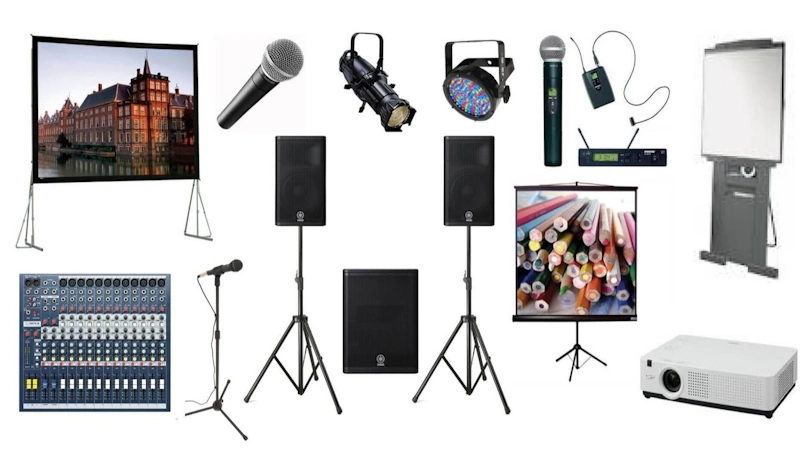
Lavalier microphones clip to clothing, positioning capsules near mouths for consistent audio while remaining unobtrusive on camera. Wireless lavalier systems provide freedom of movement during presentations or recordings.
Headphones and Speakers
How you listen matters alongside microphone quality. Excellent input paired with poor output still compromises communication.
Over-ear headphones provide best sound quality and comfort for extended wear, fully enclosing ears for good isolation from environmental noise. Open-back designs sound more natural but leak sound, while closed-back provides better isolation for noisy environments.
On-ear headphones offer portability and lighter weight than over-ear options but less isolation and potentially reduced comfort during very long sessions.
Earbuds or in-ear monitors maximize portability and minimize obtrusiveness but may cause fatigue during extended wear and typically provide less sound quality than full-size headphones.
Desktop speakers enable working without headphones when not on calls, reducing ear fatigue. Quality powered speakers like Audioengine A2+, Creative Pebble, or Edifier provide excellent sound for music and media without requiring separate amplification. Avoid using speakers during calls due to potential audio feedback or echo.
Noise Cancellation and Audio Processing
Modern technology enables cleaning audio through hardware and software solutions.
Active noise cancellation (ANC) in premium headphones uses microphones detecting external sounds and playing inverse waves canceling those sounds, dramatically reducing environmental noise. This helps both with concentrating during work and ensuring you hear calls clearly without cranking volume.
Microphone noise suppression in modern headsets and microphones uses digital processing to identify and remove background noise—typing, traffic, household sounds, HVAC systems—from transmitted audio. Technologies like Jabra’s Advanced Noise Cancellation or AI-powered noise removal create impressively clean audio even in less-than-ideal environments.
Software noise cancellation tools like Krisp or NVIDIA Broadcast provide AI-powered background noise removal working with any microphone, dramatically cleaning audio by removing everything except voices. These tools prove invaluable for working from home environments with unavoidable background noise—children, pets, roommates, traffic, construction.
Audio Accessories and Enhancements
Supporting gear enhances microphone performance and convenience.
Boom arms position microphones optimally near mouths while keeping desks clear, enable swinging mics out of the way when not in use, and reduce vibration transmission from desks. Quality boom arms like Rode PSA1 or Blue Compass cost $60-100 providing significant positioning flexibility.
Pop filters reduce plosive sounds—“p” and “b” sounds creating harsh pops in recordings—while protecting microphones from moisture. Simple foam windscreens cost just a few dollars while dedicated pop filter screens provide maximum effectiveness.
Shock mounts isolate microphones from vibrations transmitted through stands or desks, reducing handling noise and rumble. Essential for sensitive condenser microphones picking up every desk bump or keyboard impact.
Cable management keeps audio cables organized, preventing tangles and making setups cleaner. Simple velcro cable ties or cable sleeves dramatically improve desk appearance while making cable troubleshooting easier.
Shop on AliExpress via link: wholesale-microphone-headset
Audio represents one of the highest-impact, lowest-cost remote work improvements. Even modest investments in quality headsets or microphones deliver immediately noticeable improvements in communication clarity, professional perception, and meeting effectiveness. Prioritize audio alongside other essential equipment, ensuring colleagues and clients hear you clearly while you comfortably hear them. The difference between mediocre laptop audio and proper equipment is night and day, making audio investment one of the best returns on spending for remote workers.
4. Webcams and Video Conferencing Tools
Video communication has become central to remote work collaboration, making webcam quality and video presence increasingly important for professional perception and effective communication. While audio remains more critical than video, poor video quality still undermines professional image and can distract from meeting content.
Built-In Webcams vs External Options
Most laptops include built-in webcams providing basic video capability, but quality varies dramatically between models and typically falls short of professional standards.
Built-in laptop webcams often suffer from low resolution (720p common, 1080p less frequent), poor low-light performance resulting in grainy or dark video, unflattering angles positioned below faces when laptops sit on desks, fixed focus limiting depth control, and sometimes laggy or choppy video during CPU-intensive tasks.
External webcams overcome these limitations through higher resolutions (1080p standard, 4K available), better sensors performing well in various lighting conditions, flexible positioning at optimal heights and angles using clips or stands, superior lenses and image processing, and dedicated hardware avoiding taxing computer processors.
The transformation from grainy laptop webcam to quality external camera dramatically improves how you appear to others—sharper image, better color accuracy, more flattering angles, and overall more professional presentation creating positive impressions during meetings with colleagues, clients, or job interviews.
Webcam Options Across Price Ranges
Quality webcams exist at various price points suitable for different needs and budgets.
Budget webcams ($30-60) like Logitech C270 or Microsoft LifeCam provide basic 720p video quality, adequate for casual video calls, automatically adjusting exposure, and simple plug-and-play USB setup. These represent minimal but functional improvements over poor laptop cameras, suiting infrequent video call users wanting marginal quality boosts at minimal cost.
Mid-range webcams ($60-100) deliver excellent value with 1080p resolution, good low-light performance, smooth 30fps video, wide-angle lenses capturing more of your frame, and sometimes built-in ring lights. Logitech C920 remains industry standard at this tier, offering reliable performance for most users. This category suits professionals with regular video calls wanting good quality without premium pricing.
Premium webcams ($100-200) provide superior image quality approaching DSLR performance, 1080p at 60fps or 4K at 30fps resolution, excellent low-light sensors, background blur capabilities, and advanced features like auto-framing tracking you as you move. Logitech Brio, Logitech StreamCam, or Razer Kiyo Pro serve professionals wanting maximum video quality for important meetings or presentations.
Professional broadcasting cameras ($200-1000+) include DSLR cameras or mirrorless cameras with HDMI outputs connected through capture cards, providing truly exceptional image quality with depth of field control, professional color science, and customizable settings. This tier suits content creators, executives with critical video presence, or anyone wanting absolute best video quality regardless of cost and complexity.
Optimal Webcam Positioning
Even excellent webcams deliver poor results if positioned incorrectly. Proper placement dramatically improves how you appear on camera.
Position webcams at or slightly above eye level, ensuring cameras look straight at your face rather than upward from desk level or downward from monitor tops. Eye-level positioning provides most flattering angles, mimicking natural face-to-face conversation perspectives.
Center webcams directly in front of you rather than off to sides, reducing awkward angles where you appear to be looking away from meeting participants. If using external monitors, position webcams atop the monitor you primarily face during calls.
Maintain appropriate distance—roughly arm’s length from webcams—showing your head and shoulders in frame without being too close (unflattering, reduces gesture visibility) or too far (appearing tiny and disengaged).
Consider camera angles carefully. Slightly above eye level generally flatters more than below, as upward angles emphasize chins and nostrils unflatteringly. However, excessive high angles also look odd. Straight-on or very slightly above provides best results for most people.
Lighting for Better Video Quality
Lighting dramatically affects webcam appearance—often more than camera quality itself. Good lighting transforms mediocre cameras while poor lighting ruins excellent cameras.
Natural light from windows provides beautiful, flattering illumination when positioned correctly. Sit facing windows so light falls on your face, avoiding backlighting that silhouettes you against bright windows. Soft, indirect natural light works best—diffuse window light on overcast days or indirect sunlight creates even, flattering illumination without harsh shadows.
When natural light is insufficient or unavailable, artificial lighting becomes essential. Key lights positioned in front slightly above camera height illuminate faces evenly. Ring lights create particularly flattering illumination for close-up webcam shots, providing shadowless, even lighting perfect for video calls. Larger panel LED lights offer more powerful, adjustable illumination for bigger spaces or more elaborate setups.
Three-point lighting—key light, fill light reducing shadows created by key light, and back light separating you from backgrounds—creates most professional results, though requires space, equipment, and effort beyond what most remote workers want.
Avoid lighting solely from overhead—ceiling lights create unflattering shadows in eye sockets and under chins. Supplement overhead light with front-facing sources. Similarly, avoid strong lighting from behind—this creates silhouetting where you appear as dark shape against bright background.
Color temperature matters for natural appearance. Daylight-balanced lights (5000-6500K) provide neutral white light matching window light and preventing yellow or blue color casts. Match light temperatures across multiple sources for consistent color.
Virtual Backgrounds and Background Blur
Physical backgrounds visible during calls communicate (intentionally or not) about your environment and professionalism. Several options exist for managing what others see behind you.
Real backgrounds provide most authentic appearance but require maintaining clean, professional-looking spaces. Bookshelves, plain walls, or tidy home offices work well. Avoid cluttered, messy, or overly personal backgrounds that distract from meeting content or project unprofessional images.
Background blur, available in many video conferencing platforms and webcams, subtly blurs backgrounds while keeping you sharp, reducing distractions without obvious artificiality. This represents good compromise—real background remains recognizable but de-emphasized. Works best with sufficient subject-background distance and adequate lighting.
Virtual backgrounds replace real backgrounds entirely with images or videos, providing complete control over what appears behind you. This enables working from anywhere—messy rooms, temporary locations, shared spaces—without background concerns. However, edge detection often imperfectly outlines people, creating distracting halos or flickering where virtual backgrounds show through hair or arms. Green screens dramatically improve virtual background quality by providing consistent backgrounds for keying software, but require dedicated space and lighting.
Video Conferencing Software Features
Different video conferencing platforms offer various features affecting call quality and convenience.
Zoom remains most widely used business video conferencing platform, offering reliable performance, virtual backgrounds, breakout rooms, screen sharing, recording, and extensive feature sets. The ubiquity means compatibility with nearly everyone.
Microsoft Teams integrates deeply with Microsoft 365, providing seamless calendar integration, file sharing, and collaboration features alongside video calls. Together mode, background effects, and meeting recording serve business users well.
Google Meet integrates with Google Workspace, offering simple, reliable video conferencing with noise cancellation, background effects, breakout rooms, and large meeting capacity. The free tier provides solid functionality for small teams.
Slack calls integrate video directly into communication platform many teams already use for messaging, streamlining transitions from text to video discussions.
Specialized tools like mmhmm or Riverside focus on presentation quality with professional production features like camera switching, background customization, or high-quality recording suitable for presentations, webinars, or content creation.
Presentation and On-Camera Presence
Technical quality matters, but on-camera presence and presentation significantly affect meeting effectiveness.
Look at the camera when speaking to create eye contact with meeting participants rather than staring at your own image or others on screen. This small adjustment creates dramatically more engaging connection.
Frame yourself properly showing head and shoulders with slight space above head, avoiding cutting off tops of heads or positioning too low showing mostly empty space above.
Minimize distracting movements—fidgeting, swiveling chairs, frequent position changes—that draw attention away from what you’re saying.
Test your setup before important calls, checking lighting, camera angles, audio quality, and background appearance. Make adjustments when stakes are low rather than discovering problems during critical meetings.
Consider your appearance—not requiring formal business attire but ensuring clean, professional presentation appropriate for your industry and meeting context. Remember cameras emphasize certain colors and patterns—avoid thin stripes or busy patterns that create moiré effects on camera.
Quality video presence combines good technical setup with thoughtful on-camera behavior, creating professional presentations that enhance rather than distract from meeting content. Invest in reasonable webcam equipment, optimize lighting and positioning, and develop comfortable on-camera presence, dramatically improving remote work communication effectiveness and professional perception.
5. Ergonomic Furniture and Comfort Solutions
Remote work environments must support hours of daily sitting, typing, and screen viewing without causing physical discomfort, pain, or long-term injury. Ergonomic furniture and proper workspace setup protect health while improving comfort, focus, and sustained productivity. Poor ergonomics creates cumulative damage—minor discomfort becoming chronic pain, temporary stiffness becoming lasting injury, and productivity losses from constant physical distraction.
The Critical Importance of Ergonomic Setup
Working in poorly configured spaces forces bodies into awkward positions, strains muscles and joints, restricts circulation, and gradually causes injury.
Common remote work injuries include lower back pain from poor chair support or incorrect sitting posture, neck and shoulder pain from screens positioned too low or keyboards too high, wrist and hand issues from unsupported typing positions or poor mouse ergonomics, eye strain from improper monitor positioning or lighting, and general fatigue from uncomfortable seating or static positions.
These problems develop gradually—initial mild discomfort ignored because “it’s not that bad” eventually becomes chronic pain requiring medical treatment, time off work, and potentially permanent damage. Prevention through proper ergonomic setup costs far less than treating injuries both financially and in terms of suffering and lost productivity.
Beyond injury prevention, ergonomic furniture dramatically improves comfort during work, enabling longer focused sessions without physical distraction, better posture improving breathing and alertness, and reduced fatigue at end of workdays.
Office Chairs: Your Most Important Furniture Investment
You spend more time in your office chair than any other single piece of furniture. Quality seating deserves priority in home office budgets, as excellent chairs prevent injury while poor chairs inevitably cause problems.
Essential Chair Features
Proper office chairs require specific features supporting healthy, comfortable sitting.
Lumbar support maintains natural spine curvature, preventing slouching that strains lower backs. Adjustable lumbar supports adapt to individual body shapes and preferences. Quality chairs provide firm, contoured support in lower back region rather than flat seat backs offering no support.
Seat height adjustment enables feet resting flat on floors (or footrests) with thighs roughly parallel to ground and knees at 90-degree angles. Seats that are too high lift feet uncomfortably or compress thighs against seat fronts restricting circulation. Seats too low force knees higher than hips creating poor posture.
Seat depth adjustment or appropriately sized seats prevent seat fronts from pressing into backs of knees (restricting circulation) or provide sufficient support under thighs. Seat cushions should extend nearly to knees without compressing calves.
Armrest adjustability enables positioning arms at comfortable heights with shoulders relaxed, elbows at roughly 90 degrees, and forearms parallel to ground. Adjustable width positions armrests supporting arms without forcing shoulders unnaturally inward or outward.
Backrest tilt and recline with tension control allows leaning back comfortably, reducing spine compression. Tilt lock enables setting preferred angles while recline tension adjustment accommodates different body weights.
Breathable materials prevent heat buildup and discomfort during extended sitting. Mesh backs provide excellent breathability though may feel less plush than foam cushions. Quality foam or fabric upholstery can also breathe well if properly designed.
Chair Options by Budget
Quality seating exists at multiple price points, with substantial improvements as budgets increase.
Budget chairs ($150-300) include basic ergonomic features—lumbar support, height adjustment, simple armrests—providing significant improvements over dining chairs or stools despite lacking premium features. Brands like Ikea Markus, HON Exposure, or AmazonBasics High-Back provide functional ergonomics at accessible prices.
Mid-range chairs ($300-600) deliver excellent ergonomic support with comprehensive adjustments, quality construction, and comfortable materials. This tier includes chairs like Steelcase Series 1, Herman Miller Sayl, or Autonomous ErgoChair, offering most ergonomic benefits of premium chairs at more accessible pricing.
Premium ergonomic chairs ($600-1500) provide exceptional adjustability, superior materials and construction, proven ergonomic design from leading manufacturers, and durability lasting decades. Herman Miller Aeron, Steelcase Leap, or Haworth Zody represent gold standards, though high costs limit these to people spending extensive time sitting or with budgets accommodating premium furniture.
Used premium chairs offer excellent value—often available at 40-60% discounts from original prices when businesses liquidate or people upgrade. Quality chairs last decades, making well-maintained used Herman Miller or Steelcase chairs at $400-700 better values than new mid-range chairs at similar prices.
Standing Desk Solutions
Alternating between sitting and standing throughout workdays improves circulation, reduces static strain, and increases energy compared to sitting exclusively.
Full standing desks use electric or manual height adjustment, enabling seamless transitions between sitting and standing heights. Electric desks provide easiest adjustment through button presses, while manual crank desks cost less but require more effort for height changes. Quality standing desks cost $300-800 for electric versions, $200-400 for manual alternatives.
Desk converters sit atop existing desks, raising work surfaces and monitors to standing heights without replacing entire desks. These cost $150-400 and work well for renters or those wanting standing options without new desks. However, they reduce workspace area and don’t adjust overall desk height (only the work surface), potentially causing ergonomic issues.
Simple standing solutions include using tall counters, bars, or DIY platforms for occasional standing work without significant investment. These work for brief standing sessions but lack flexibility and proper ergonomics for extensive standing work.
Balance boards, anti-fatigue mats, or small treadmills complement standing work by reducing foot and leg fatigue, encouraging subtle movement, and making standing more comfortable for longer periods.
Desk Height and Layout Considerations
Proper desk height and layout affect posture and comfort regardless of sitting or standing.
Sitting desk height should position keyboard and mouse at heights where forearms rest roughly parallel to ground with relaxed shoulders and elbows bent approximately 90 degrees. Standard desk heights (28-30 inches) suit average-height people but may require adjustment for very tall or short individuals.
Standing desk height should similarly position keyboards at elbow height, typically 38-46 inches depending on height. Monitors should remain at eye level when standing, often requiring monitor arms or stands raising screens substantially above desk surfaces.
Desk depth affects comfortable monitor positioning and overall workspace. Minimum 24-inch depth suffices for basic setups, while 30-inch depth provides room for monitors at proper distances without crowding. Deeper desks accommodate multiple monitors, additional equipment, or simply more comfortable working space.
Desk organization reduces clutter and improves efficiency. Cable management prevents tangled cable mess while making workspaces visually cleaner. Desk accessories like monitor stands, laptop stands, or shelf risers create vertical organization maximizing usable surface area.
Keyboard and Mouse Ergonomics
How you interact with keyboards and mice significantly affects wrist, hand, and arm comfort.
Keyboard height and angle matter enormously. Keyboards should sit at heights where wrists remain roughly neutral (not bent upward or downward) while typing. Most keyboards include adjustable feet creating negative tilt (front higher than back), but research suggests flat or slightly negative tilt (front lower than back) reduces wrist strain compared to positive tilt.
Split or ergonomic keyboards position hands more naturally, reducing ulnar deviation (wrists bent outward) common with standard keyboards. These take adjustment periods but many users report substantial comfort improvements. Tented keyboards angle halves upward toward center, positioning wrists more naturally.
Keyboard trays mount under desks, enabling positioning keyboards lower than desk surfaces and angling for optimal wrist positions. Combined with monitors on stands or arms raising screens to proper heights, keyboard trays enable truly ergonomic setups impossible with keyboards and monitors both sitting directly on desk surfaces.
Mouse positioning affects shoulder, elbow, and wrist comfort. Position mice close to keyboards at similar heights, avoiding reaching forward or outward. Vertical mice position hands in “handshake” positions reducing forearm twist. Trackballs eliminate repetitive wrist and arm motions, requiring only finger movements.
Mouse pads with wrist rests provide cushioned support, though some ergonomic experts suggest wrists should “float” above surfaces rather than rest on supports during active use. Gel cushions or memory foam provide comfortable wrist support between active periods.
Additional Ergonomic Accessories
Beyond primary furniture, various accessories further improve ergonomic setup.
Footrests support feet when chairs must be raised for proper desk height but this elevation lifts feet off ground. Footrests reduce pressure on thighs and improve circulation.
Lumbar cushions provide additional or improved lower back support for chairs with inadequate built-in lumbar support. These cost $20-50 and can transform uncomfortable chairs into acceptable ones.
Seat cushions add comfort and improve weight distribution for chairs with thin or worn padding. Memory foam or gel cushions cost $30-60 and significantly improve seating comfort.
Monitor arms provide maximum positioning flexibility, enabling precise adjustment of screen heights, distances, angles, and even switching monitors between landscape and portrait orientations. Single monitor arms cost $80-150, with dual or triple monitor arms supporting multiple displays.
Document holders position reference materials at eye level beside monitors, reducing neck strain from constantly looking down at desks while reading or typing from documents.
Proper ergonomic setup requires thoughtful investment in furniture and accessories supporting healthy, comfortable work. Prioritize quality seating, proper desk height, monitor positioning at eye level, and keyboard/mouse ergonomics. These foundational elements prevent injury, reduce fatigue, and enable sustained productive work throughout long remote work days. Your body will thank you, your productivity will improve, and you’ll avoid costly medical treatments for preventable injuries.
6. Lighting and Environmental Control
Lighting profoundly affects visual comfort, eye strain, mood, energy levels, and even sleep quality. Yet lighting remains one of the most overlooked aspects of home office setup despite being relatively inexpensive to optimize. Similarly, temperature, air quality, and noise significantly impact comfort and focus, with straightforward solutions dramatically improving work environments.
The Impact of Proper Lighting
Poor lighting creates multiple problems for remote workers. Insufficient light causes eye strain as eyes work harder to focus and read text on screens or documents. Glare from windows or overhead lights reflects off monitors creating distracting reflections and forcing eyes to constantly adapt between bright glares and darker screens. Unbalanced lighting with dramatically different brightness between screens and surroundings fatigues eyes constantly adjusting between brightness levels. And inadequate task lighting for document work or note-taking causes strain and reduces accuracy.
Beyond physical discomfort, lighting affects mood and energy. Natural light exposure supports circadian rhythms maintaining healthy sleep-wake cycles and alertness. Bright, cool-toned light increases alertness and focus during work hours. Warm, dimmer light in evenings promotes relaxation and better sleep onset. Consistent exposure to dim, warm artificial light throughout days can actually disrupt sleep patterns and reduce daytime alertness.
Natural Light Optimization
Natural daylight provides the best illumination for work environments when properly managed.
Position desks near windows when possible, maximizing natural light exposure without creating screen glare. Perpendicular positioning—sitting beside windows rather than facing or backing to them—provides good natural light while minimizing direct glare on monitors.
Manage direct sunlight through window treatments. Sheer curtains or adjustable blinds enable controlling light intensity and angle, reducing harsh direct sunlight while maintaining overall natural brightness. Blackout curtains provide complete light control but eliminate beneficial natural light entirely.
Consider window direction when positioning workspaces. North-facing windows (in northern hemisphere) provide consistent, non-direct natural light throughout days. South-facing windows receive strongest sun, requiring more aggressive management but providing maximum light. East-facing windows flood with morning light then diminish by afternoon, while west-facing windows remain dim mornings then intensify afternoons and evenings.
Task Lighting for Workspaces
Artificial lighting supplements natural light or provides illumination when natural light is insufficient or unavailable.
Desk lamps provide targeted task lighting for document work, note-taking, or keyboard illumination without overlighting entire rooms. LED desk lamps with adjustable arms enable positioning light precisely where needed. Lamps with adjustable brightness and color temperature allow customizing lighting for different tasks and times of day.
Monitor backlights or bias lighting—LED strips behind monitors creating subtle glow on walls behind screens—reduce eye strain by decreasing contrast between bright screens and dark backgrounds. These cost just $10-20 but noticeably reduce eye fatigue during extended screen time.
Floor lamps provide broader ambient lighting filling rooms more evenly than harsh overhead ceiling lights. Torchiere-style floor lamps directing light upward create gentle indirect illumination bouncing off ceilings rather than direct brightness.
Ring lights and panel lights, originally designed for photography and video, provide excellent even illumination for video calls while also serving as general task lighting. LED panel lights with adjustable brightness and color temperature cost $30-80 and provide versatile, high-quality illumination.
Color Temperature and Brightness
Light quality matters as much as quantity. Color temperature and brightness significantly affect visual comfort and appropriate for different activities.
Color temperature measures light’s warmth or coolness on the Kelvin scale. Warm light (2700-3000K) appears yellowish, mimicking candlelight or sunset, promoting relaxation. Neutral white (3500-4500K) resembles natural daylight on overcast days. Cool white or daylight (5000-6500K) appears bluish, mimicking bright midday sun and promoting alertness.
Matching color temperature to activities optimizes lighting effectiveness. Cool daylight-balanced light enhances focus and alertness during core work hours. Warm light in evenings supports relaxation and healthy sleep patterns by not suppressing melatonin production the way blue-rich light does. Tunable lights enabling color temperature adjustment throughout days provide optimal lighting for all times.
Brightness requirements vary by task and ambient conditions. General office lighting recommendations suggest 300-500 lux for computer work, bright enough for comfortable seeing without excessive brightness causing glare or eye strain. Task lighting for detail work or reading may require higher intensity. Adjustable brightness enables customizing lighting for specific needs.
Reducing Eye Strain from Screens
Beyond ambient lighting, several strategies reduce eye strain specifically from monitor usage.
Follow the 20-20-20 rule: every 20 minutes, look at something 20 feet away for 20 seconds, giving eyes breaks from close focus on screens. Software like Time Out or Stretchly provides reminders.
Adjust screen brightness matching ambient lighting rather than using maximum brightness in dim rooms or dim screens in bright environments. Screens should appear neither glowing nor washed out compared to surroundings.
Reduce blue light exposure, particularly in evenings, through software like f.lux or built-in operating system night modes gradually shifting screen color temperature toward warmer tones after sunset.
Position monitors to minimize glare from windows or lights. Angle screens slightly to deflect reflections away from viewing positions. Anti-glare screen filters reduce but don’t eliminate reflections.
Consider monitor refresh rates and flicker. Modern LED monitors typically don’t flicker perceptibly, but if experiencing eye strain, ensure monitors operate at maximum refresh rates (60Hz minimum).
Temperature and Climate Control
Temperature significantly affects comfort, focus, and productivity. Studies suggest optimal cognitive performance occurs around 70-73°F (21-23°C), with performance declining in temperatures substantially warmer or cooler.
Space heaters provide supplementary heating in cold offices without overheating entire homes. Personal heaters positioned near desks create comfortable microclimates in otherwise cool rooms. Safety features like tip-over protection and automatic shutoff are essential.
Fans and portable air conditioners cool overheated workspaces when central air conditioning is inadequate, unavailable, or too expensive to run constantly. Tower fans provide quiet airflow without cluttering desks. Personal desk fans create localized cooling precisely where needed.
Humidity affects comfort and health. Too-dry air causes respiratory irritation, dry skin, and increased static electricity. Too-humid air feels muggy and can promote mold growth. Humidifiers add moisture in dry environments (common in winter or air-conditioned spaces), while dehumidifiers remove excess humidity in damp environments.
Air Quality and Ventilation
Indoor air quality affects health, comfort, alertness, and cognitive performance. Home offices, particularly in tightly sealed modern buildings, can accumulate pollutants, carbon dioxide, and stale air without adequate ventilation.
Air purifiers filter particulates, allergens, and some pollutants from indoor air. HEPA filtration removes fine particles including dust, pollen, and some smoke. Activated carbon filters reduce odors and certain gaseous pollutants. Air purifiers benefit people with allergies, asthma, or offices in polluted urban areas.
Proper ventilation through open windows (when outdoor air quality permits and weather allows) or mechanical ventilation systems brings fresh outdoor air inside, reducing carbon dioxide buildup and refreshing stale indoor air. Even in climate-controlled spaces, briefly opening windows or ensuring ventilation systems function properly improves air quality.
Indoor plants modestly improve air quality through oxygen production and minor pollutant removal, but primarily benefit workspaces aesthetically and psychologically rather than dramatically purifying air as sometimes claimed.
Noise Management
Noise from household activities, neighbors, traffic, or other sources disrupts focus and reduces productivity. Several approaches mitigate unwanted sound.
White noise machines mask intermittent disruptive sounds through consistent background noise. The steady sound makes irregular noises less noticeable by providing constant audio backdrop.
Noise-canceling headphones actively reduce ambient noise through electronic cancellation, creating quieter listening environments for music or calls while also enabling focus in noisy environments even without playing audio.
Acoustic treatment through soft furnishings (curtains, rugs, upholstered furniture) absorbs sound reducing echo and overall noise levels. Dedicated acoustic panels provide maximum sound absorption but typically aren’t necessary for home offices unless dealing with severe noise issues or doing audio recording.
Weatherstripping doors and windows reduces sound transmission from outside or other rooms. Simple foam strips cost little but noticeably reduce noise infiltration.
Shop on AliExpress via link: wholesale-desk-lamp
Environmental factors—lighting, temperature, air quality, noise—profoundly affect comfort, health, and productivity despite often being overlooked in favor of more obvious technology investments. Optimizing these factors requires modest investment and effort but delivers substantial returns in reduced strain, improved focus, better mood, and greater overall satisfaction with home work environments. Address environmental concerns systematically, creating pleasant, comfortable spaces supporting sustained high-quality work throughout long days.
7. Connectivity and Network Equipment
Reliable, fast internet connectivity represents the absolute foundation of remote work—everything depends on it. Poor connectivity causes dropped video calls, delayed file syncs, frustrating lag, and reduced productivity. Yet many remote workers tolerate inadequate network performance without realizing straightforward solutions could dramatically improve their experience.
Internet Speed Requirements
Different remote work activities demand varying internet speeds. Understanding your needs helps determine whether current internet service suffices or requires upgrades.
Basic remote work—email, web browsing, document editing, messaging—requires minimal bandwidth. 5-10 Mbps download and 1-2 Mbps upload handle these tasks comfortably. Nearly any internet service supports this baseline usage.
Video conferencing requirements depend on quality and participant numbers. Standard definition (480p) video calls use roughly 1-2 Mbps per participant. HD (720p) calls require 2-4 Mbps. Full HD (1080p) demands 4-6 Mbps. For one-on-one calls, 10-25 Mbps download and 5-10 Mbps upload suffice. Larger meetings or screen sharing benefit from higher speeds.
File uploads and downloads occur constantly in remote work—documents to cloud storage, design files to clients, code to repositories, video recordings to sharing platforms. Large files benefit dramatically from faster upload speeds often neglected when evaluating internet plans. Uploading 1GB file takes 18 minutes on 10 Mbps upload but just 90 seconds on 100 Mbps upload.
Household sharing affects individual performance. Multiple people working from home, streaming video, gaming, or downloading files simultaneously consume bandwidth, reducing available speed for each activity. Total bandwidth should accommodate all simultaneous users—family of four with multiple video calls and streaming might need 100+ Mbps reliably.
Upgrading Internet Service
If current internet proves inadequate, several options exist for improving connectivity.
Contact existing internet providers asking about faster tier availability. Many areas have faster plans than customers currently use, with upgrades sometimes surprisingly affordable. Cable and fiber services frequently offer higher tiers with minimal installation hassle.
Compare competing providers if multiple options exist in your area. Regional cable companies, telephone DSL, fiber services, fixed wireless, or satellite internet may serve your location. Comparison shopping often reveals better options than assumed available.
Fiber internet provides fastest, most reliable service where available. Symmetrical upload and download speeds (unlike cable’s asymmetric faster download/slower upload) particularly benefit remote workers uploading files frequently or hosting video calls.
5G home internet brings cellular data to homes via wireless routers, providing cable-like speeds without physical line requirements. Coverage varies by location and carrier, but where available, 5G often outperforms DSL or older cable internet.
Satellite internet, once last resort with high latency and limited speeds, has improved dramatically through services like Starlink offering broadband speeds with reasonable latency even in remote locations lacking other options.
Router and Mesh Network Systems
Internet service quality matters, but internal home networks significantly affect how that internet reaches devices. ISP-provided routers often deliver mediocre performance, justifying standalone router investments.
Modern WiFi routers supporting WiFi 6 (802.11ax) provide substantially faster speeds, better performance with many simultaneous devices, improved range, and reduced latency compared to older WiFi 5 routers. Upgrading routers benefits even if internet speeds don’t increase, as internal network improvements reduce bottlenecks between devices and internet connections.
Mesh network systems solve WiFi coverage problems in larger homes or buildings with challenging layouts. Traditional routers create single WiFi access points with range limitations, dead zones in distant rooms, and walls blocking signals. Mesh systems use multiple nodes positioned throughout homes, creating seamless networks with consistent strong signals everywhere. Systems like Eero, Google Nest WiFi, or Netgear Orbi cost $200-400 for typical home coverage.
Router placement dramatically affects WiFi performance regardless of router quality. Central locations provide best coverage. Elevated positions (on furniture rather than floors) improve signal propagation. Avoiding enclosed cabinets, metal objects, or thick walls between routers and work areas maximizes performance.
Wired Ethernet Connections
WiFi offers convenience, but wired Ethernet connections provide faster, more reliable, and more secure connectivity eliminating WiFi’s limitations.
Direct Ethernet connections from computers to routers deliver maximum speed and reliability, eliminating WiFi interference, congestion, and signal strength variations. Latency drops, providing more responsive connections for video calls and collaborative work.
Powerline network adapters extend wired connections through existing electrical wiring, providing Ethernet ports in distant rooms without running cables through walls. Quality powerline adapters cost $60-120 per pair and deliver 500-1000 Mbps depending on electrical system quality.
Running Ethernet cables provides permanent wired infrastructure for serious home offices. While requiring more installation effort, professional-quality Cat6 or Cat6a Ethernet cabling supports multi-gigabit speeds and provides most reliable connectivity possible.
For desks near routers, simple Ethernet cables cost just dollars and dramatically improve connection quality. Even 10-20 foot cables enable wired connections in many home office scenarios.
Network Security
Home networks require security protecting work data, personal information, and preventing unauthorized access.
Change default router passwords immediately upon installation. Default credentials are publicly known, creating security vulnerabilities. Use strong unique passwords storing them in password managers.
Enable WPA3 encryption (or WPA2 if WPA3 unavailable) on WiFi networks. Never use WEP encryption or open networks lacking encryption entirely.
Create separate guest networks for visitors, smart home devices, or untrusted connections, isolating them from main networks containing work devices and sensitive data.
Update router firmware regularly to patch security vulnerabilities. Enable automatic updates if available.
Consider VPNs (Virtual Private Networks) for enhanced security, particularly when accessing company systems or handling sensitive data. VPNs encrypt all internet traffic protecting data from ISP monitoring or public network eavesdropping.
Disable WPS (WiFi Protected Setup) as this convenience feature introduces security vulnerabilities. Manual connection through passwords provides better security.
Backup Internet Solutions
Reliable internet is crucial enough that backup connectivity warrants consideration for people dependent on constant connectivity.
Mobile hotspots through smartphones provide emergency internet when primary connections fail. Data plan costs and speed limitations prevent using smartphones as primary internet, but they suffice for critical email or calls during outages.
Dedicated mobile hotspot devices or cellular routers provide more capable backup internet. These typically offer faster speeds and stronger signals than smartphone hotspots while not draining phone batteries.
Dual-ISP failover solutions automatically switch between two internet services when one fails, providing seamless connectivity transitions. These enterprise-focused solutions suit people whose work absolutely cannot tolerate outages.
Troubleshooting Common Connectivity Issues
Many network problems have straightforward solutions saving troubleshooting time.
Slow speeds despite fast internet service often stem from router location, WiFi interference, outdated routers, or device limitations rather than ISP problems. Testing speeds with Ethernet connections directly to routers isolates whether problems occur with internet service or internal networks.
Intermittent disconnections might result from WiFi signal strength issues, interference from neighboring networks, router overheating, or ISP stability problems. Position routers optimally, ensure adequate ventilation, change WiFi channels reducing interference, and contact ISPs if problems persist.
Slow uploads specifically affect remote workers sharing files or video. Many internet services provide asymmetric speeds—fast downloads but much slower uploads. Upgrading to plans with better upload speeds or switching to fiber services with symmetric speeds solves this problem.
Connectivity remains the invisible foundation of remote work—when working, it goes unnoticed, but when failing, it ruins everything. Invest appropriately in adequate internet service, quality networking equipment, and proper setup ensuring reliable fast connectivity throughout work spaces. The difference between mediocre and excellent home networks profoundly affects remote work quality, making networking investment essential rather than optional for serious remote work success.
8. Productivity Software and Digital Tools
Beyond physical equipment, digital tools and software dramatically affect remote work productivity, organization, and collaboration. The right applications streamline workflows, automate routine tasks, facilitate communication, and keep projects organized while poor software creates friction, reduces efficiency, and frustrates daily work.
Communication and Collaboration Platforms
Effective communication with distributed teams requires dedicated tools replacing in-person interaction.
Slack dominates team messaging, providing organized channels for different topics, direct messages for private conversations, file sharing, integration with countless other tools, searchable message history, and threading preventing conversations from becoming chaotic. The free tier suits small teams while paid plans add unlimited message history, guest accounts, and advanced features. Alternatives like Microsoft Teams or Discord provide similar functionality with different strengths and ecosystems.
Email remains essential despite newer tools. Quality email clients like Gmail, Outlook, or Apple Mail with good organization features (labels, folders, filters, search), spam protection, and calendar integration enable efficient email management. Smart features like priority inbox, snooze, or scheduled sending improve email productivity.
Video conferencing tools beyond hardware include platform software like Zoom, Microsoft Teams, Google Meet, or WebEx. Features like screen sharing, recording, virtual backgrounds, breakout rooms, and integration with calendars and other tools facilitate remote meetings. Many people use multiple platforms depending on who they’re meeting with, requiring comfortable familiarity with several options.
Project Management and Task Tracking
Organizing work, tracking progress, and coordinating with others requires structured project management.
Asana provides flexible project management with task lists, kanban boards, timeline views, and customizable workflows. Teams organize work into projects, assign tasks to people, set deadlines, and track progress collaboratively. The free tier suffices for small teams while paid plans enable advanced features like forms, automation, and reporting.
Trello uses kanban board organization—cards moving through lists representing workflow stages. The visual, drag-and-drop interface provides intuitive project visualization. Power-ups add capabilities like calendars, voting, or integration with other tools. Trello suits teams preferring visual organization over list-based approaches.
Monday.com offers highly customizable project management with numerous view options (boards, timelines, calendars, charts), extensive automation, and flexibility accommodating diverse workflows. The colorful, visual interface either appeals or overwhelms depending on preferences.
Notion combines notes, databases, wikis, and project management into unified workspaces. Teams build custom systems organizing knowledge and work flexibly. The learning curve exceeds simpler tools but the flexibility enables creating exactly desired workflows.
Traditional tools like Microsoft Project or Jira serve specialized needs—formal project management methodologies or software development respectively—though their complexity and costs limit appeal outside specific contexts.
Note-Taking and Knowledge Management
Capturing information, organizing notes, and building knowledge bases enable finding and using information efficiently.
Evernote pioneered digital note-taking with features like web clipping, document scanning, audio notes, and powerful search. Cross-device sync keeps notes accessible everywhere. Organization through notebooks, tags, and linking creates flexible knowledge management. Premium plans add offline access, more upload capacity, and AI features.
Microsoft OneNote integrates deeply with Office 365, providing hierarchical organization through notebooks, sections, and pages. Flexibility in note format—typed text, handwritten notes, images, audio recordings—accommodates diverse note-taking styles. Free availability makes OneNote accessible to anyone.
Notion (mentioned above) excels at note-taking alongside project management, enabling bidirectional linking between notes creating networks of connected information.
Simple text editors or markdown editors like Obsidian, Bear, or iA Writer suit people preferring plain text notes with lightweight organization and local-first storage providing complete data ownership.
Time Tracking and Productivity Monitoring
Understanding where time actually goes enables optimizing productivity and billing accurately for freelancers.
Toggl Track provides simple time tracking through desktop apps, browser extensions, or mobile apps. One-click timers track project time, generate reports showing where time goes, support multiple projects and clients, and integrate with project management and invoicing tools. Freelancers billing hourly particularly benefit from accurate time tracking.
RescueTime runs in background monitoring application and website usage, categorizing time as productive or distracting, generating detailed reports on daily habits, and blocking distracting sites during FocusTime sessions. The automatic tracking requires no manual input while revealing often surprising truths about where time actually goes versus where you think it goes.
Forest takes gamified approach to focus—virtual trees grow during focused work sessions, dying if you use your phone. The playful method helps some people maintain focus better than serious productivity apps.
Document Creation and Editing
Creating, editing, and collaborating on documents requires capable software.
Microsoft Office 365 remains standard in business environments. Word for documents, Excel for spreadsheets, PowerPoint for presentations, and Outlook for email provide comprehensive capabilities with cross-platform availability through web apps, desktop programs, and mobile apps. Collaboration features enable real-time co-authoring. Personal subscriptions cost $70/year while business plans add admin features and increased storage.
Google Workspace (formerly G Suite) offers cloud-native alternatives with Docs, Sheets, and Slides. The superior real-time collaboration, automatic saving, and seamless sharing make Google’s tools excellent for teams working together remotely. Free for personal use, business subscriptions add custom email domains, more storage, and administrative controls.
LibreOffice or Apache OpenOffice provide free, open-source alternatives with good compatibility with Microsoft formats. Feature sets lag Microsoft and Google but suffice for many users wanting free office software.
Specialized writing tools like Scrivener target long-form writers (authors, researchers) needing sophisticated organization beyond what word processors provide. LaTeX serves academic and scientific writing requiring precise formatting and mathematical notation.
File Storage and Backup
Secure, reliable file storage with backup and sharing capabilities is essential for remote work.
Dropbox pioneered cloud storage with simple folder synchronization, reliable file sync, extensive third-party integration, and sharing features. Personal plans provide 2TB storage for $10-12/month. Business plans add administrative controls, unlimited storage, and advanced features.
Google Drive integrates with Google Workspace, providing 15GB free storage shared across Gmail, Drive, and Photos. Paid plans ($2-20/month) expand storage to 100GB-2TB. The deep integration with Google services makes Drive natural choice for Google ecosystem users.
Microsoft OneDrive integrates with Office 365, including 1TB storage with Microsoft 365 subscriptions. Windows integration enables seamless file synchronization.
iCloud serves Apple users, providing device backups, photo storage, and file synchronization across Mac, iPhone, and iPad. The ecosystem lock-in frustrates but integration benefits Apple users.
Backup software like Backblaze, Carbonite, or Crashplan provides automated computer backup protecting against data loss from hardware failures, theft, or accidents. $70-120/year for unlimited backup provides insurance against devastating data loss.
Password Management
Secure password management balances security with convenience.
1Password provides secure password storage, password generation, autofill across devices and browsers, secure note storage, and sharing features for family or team passwords. $3-5/month for individuals, $20-40/month for teams.
Bitwarden offers similar features to 1Password with free tier including unlimited passwords across unlimited devices. Premium features cost $10/year. Open-source nature appeals to privacy-conscious users.
LastPass provides free password management with device-type restriction (mobile or desktop, not both on free tier). Premium removes restrictions and adds advanced features.
Password managers dramatically improve security through unique, complex passwords for every account while requiring remembering just one master password. The convenience of autofill and cross-device sync improves productivity while enhancing security.
Automation and Integration
Connecting disparate tools and automating routine tasks improves efficiency.
Zapier connects different applications, automating workflows between tools. Trigger actions in one app automatically trigger actions in others—new email attachments save to Dropbox, form submissions create tasks in Asana, calendar events post to Slack. Thousands of supported apps and customizable workflows enable extensive automation.
IFTTT (If This Then That) provides simpler automation with applet-based approach connecting consumer apps and smart home devices. Less powerful than Zapier for business workflows but more accessible for personal automation.
Software Recommendations by Role
Different professions benefit from specialized software addressing specific needs.
Writers: Grammarly for editing, Scrivener for long-form organization, Google Docs for collaboration, Hemingway for readability, Evernote for research
Developers: Visual Studio Code or JetBrains IDEs, GitHub for version control, Docker for containers, Postman for API testing, Stack Overflow for problem-solving
Designers: Adobe Creative Cloud (Photoshop, Illustrator, InDesign), Figma for UI design, Sketch for Mac users, Canva for quick graphics
Marketers: Google Analytics, Mailchimp or Constant Contact for email marketing, Hootsuite or Buffer for social media, SEMrush for SEO
Project Managers: Asana or Monday.com for task management, Miro or Mural for brainstorming, Slack for communication, Zoom for meetings
Software represents the invisible infrastructure of remote work knowledge jobs. Choosing appropriate tools, learning to use them effectively, and integrating them into coherent workflows dramatically improves productivity, organization, and satisfaction. Start with essential communication, project management, and file storage tools, then add specialized applications addressing your specific professional needs. Avoid accumulating too many tools creating complexity through their own management—focus on applications genuinely improving workflows rather than collecting software for its own sake.

9. Organization and Storage Solutions
Physical organization dramatically affects productivity, focus, and satisfaction with work environments. Cluttered, disorganized workspaces create visual noise distracting attention, waste time searching for items, and generate low-level stress from environmental chaos. Thoughtful organization creates calm, efficient workspaces supporting focused, productive work.
Desk Organization Systems
Keeping desks organized requires intentional systems rather than just periodic tidying.
Monitor stands with storage underneath elevate screens to proper heights while creating space below for keyboards when not in use, small office supplies, or notebooks. This vertical organization reclaims desk surface space.
Desk organizers consolidate small items—pens, clips, sticky notes, cables—into defined spaces preventing scatter across desk surfaces. Drawer organizers, desktop caddies, or wall-mounted organizers keep supplies accessible while maintaining clean work surfaces.
Cable management drastically improves desk appearance and prevents tangled cable nests. Cable trays mounted under desks route cables cleanly. Cable sleeves bundle multiple cables into single paths. Velcro cable ties secure cables preventing tangles. Wireless charging pads reduce cable quantity for phones and compatible devices.
Desk mats provide smooth, clean work surfaces while defining workspace boundaries. Large extended mouse pads accommodate keyboards and mice while protecting desk surfaces.
Pencil cups, letter trays, or small drawers provide homes for frequently used items, making them easily accessible while keeping them off primary work surfaces when not in use.
Document Management
Paper documents still exist despite digital transformation. Managing physical paper prevents accumulation and enables finding documents when needed.
File cabinets or filing systems provide structured paper storage organized by categories, projects, or clients. Hanging folders with labeled file folders create hierarchical organization making documents findable.
Vertical file sorters keep active documents visible and accessible on desks without creating piles. Desktop file organizers sort incoming mail, pending work, or reference materials.
Document scanning converts paper to digital format, enabling digital storage, backup, and search while eliminating physical storage requirements. Dedicated document scanners or scanner apps on smartphones enable quick digitization.
Shredders securely dispose of sensitive documents preventing identity theft or data breaches. Cross-cut or micro-cut shredders provide better security than strip-cut alternatives.
Cable Management Solutions
Cables create some of most visible clutter in home offices. Managing them improves both appearance and functionality.
Cable clips adhere to desk edges or backs, guiding cables precisely where wanted and preventing them from falling behind desks when disconnected.
Cable sleeves bundle multiple cables into single tubes concealing tangled messes while making cable routing cleaner.
Cable trays mount under desks, creating hidden spaces for power strips, cable coils, and cable routing keeping everything off floors and out of sight.
Label makers identify cables enabling quick identification during troubleshooting or reconfiguration. Heat-shrink labels or removable cable tags serve this purpose.
Wireless alternatives eliminate cables entirely. Bluetooth keyboards and mice, wireless charging, and WiFi connectivity reduce cable quantity, though complete wireless operation rarely proves practical for full work setups.
Storage Solutions for Small Spaces
Limited space requires creative storage maximizing efficiency.
Vertical storage exploits wall space through shelving, wall-mounted organizers, or pegboards creating organized storage without consuming floor space. Floating shelves above desks store books, supplies, or decorative items.
Under-desk storage uses often-wasted space beneath desks. Rolling file cabinets, drawer units, or storage containers fit under desks providing substantial storage without additional floor footprint.
Multi-functional furniture serves multiple purposes. Desks with built-in drawers, shelves with integrated desk surfaces, or ottomans with internal storage maximize space efficiency.
Vertical monitor mounting on arms frees desk space while improving ergonomics. Similarly, laptop stands that hold laptops vertically when not in use minimize laptop footprint.
Printer and Equipment Storage
Printers and other office equipment require thoughtful placement balancing accessibility with space efficiency.
Printer stands or shelving positions printers at comfortable heights while storing paper and supplies below. Rolling printer carts enable moving printers aside when not needed.
All-in-one printers combine printing, scanning, and copying in single devices, reducing equipment quantity and space requirements compared to separate devices for each function.
For people rarely printing, shared printers or print shops eliminate need for personal printers entirely. Many documents never require physical copies, making printers optional for some remote workers.
Maintaining Organization Systems
Creating organized spaces is easier than maintaining them. Sustainable organization requires ongoing practices.
End-of-day tidying spending five minutes returning items to designated homes, clearing clutter, and resetting workspaces for next day maintains organization with minimal effort. This small investment prevents gradual entropy leading to major cleanups.
Weekly organization reviewing accumulated papers, reorganizing files, and addressing items without defined homes prevents slow decay of organized systems.
Quarterly purging discards items no longer needed, reviews organization systems for effectiveness, and adjusts storage based on evolved needs.
Digital Organization
Physical organization matters, but digital organization equally affects productivity.
File naming conventions using consistent, descriptive names enable finding files quickly through search or browsing. Including dates (YYYY-MM-DD format sorts chronologically), project names, and version numbers prevents confusion.
Folder hierarchies organize files into categories and subcategories. Avoid excessively deep nesting making navigation tedious while avoiding flat structures mixing unrelated files.
Cloud storage integration enables accessing files from multiple devices while providing automatic backup. Consistent use of designated cloud folders ensures files sync across devices.
Bookmark organization in browsers using folders, clear naming, and periodic cleanup prevents bookmark chaos making navigation faster than searching.
Desktop cleanliness keeping desktop clear except for active projects or frequently accessed items improves both appearance and finding files. Cluttered desktops overwhelm and hide items in visual noise.
Shop on AliExpress via link: wholesale-desk-organizer
Organization represents ongoing process rather than one-time achievement. Creating systems, consistently using them, and periodically refining approaches maintains organized, functional workspaces supporting productivity and reducing stress. Small investments in organization tools and modest time invested in maintenance deliver substantial returns in reduced time searching for items, improved focus, and greater satisfaction with work environments.
10. Creating Your Ideal Home Office Setup
Bringing together all the components discussed into cohesive, functional home offices requires systematic approaches balancing needs, constraints, and preferences. No single “perfect” setup exists—optimal configurations vary dramatically based on work requirements, available space, budget, and personal priorities.
Assessing Your Specific Needs
Before purchasing anything, thoroughly analyze your particular situation.
Work requirements determine essential equipment. Video-heavy roles need quality webcams and lighting. Creative professionals require powerful computers and accurate displays. People constantly on calls need excellent audio. Document-heavy work benefits from dual monitors. Understanding your specific work demands prevents both under-investing in essential capabilities and over-investing in unnecessary features.
Physical space constrains options. Dedicated home office rooms enable extensive setups with large desks, multiple monitors, and substantial equipment. Small apartments might require compact solutions, foldable desks, or multi-purpose spaces serving as offices during work hours and living spaces afterward. Measure available space before purchasing furniture ensuring everything fits appropriately.
Budget realities require prioritization. Unlimited budgets enable optimizing everything simultaneously. Constrained budgets demand identifying highest-value investments addressing most significant pain points first, with lower-priority improvements phased in over time as budget allows.
Personal preferences affect satisfaction more than specifications suggest. Some people love multiple monitors while others find them overwhelming. Mechanical keyboards delight enthusiasts but annoy people preferring quiet typing. Standing desks suit some work styles while others never use standing features. Understanding your actual preferences prevents buying equipment you won’t use despite impeccable recommendations.
Budget Allocation Strategies
Strategic budget allocation maximizes value from limited funds.
Prioritize ergonomics and health over everything. Quality chairs and proper desk height prevent injuries that could derail careers regardless of how impressive other equipment appears. Ergonomic investments provide lifelong value.
Invest in equipment you use constantly. For people spending eight hours daily wearing headsets, quality audio deserves substantial budget. For people rarely on calls, modest audio investments suffice. Allocate based on actual usage duration and importance.
Consider cost per year of use rather than absolute prices. $600 chairs lasting ten years cost $60 annually. $200 keyboards lasting decades cost pennies daily. $1000 computers replaced every three years cost $333 annually. Frame investments as ongoing costs over useful lifespans rather than focusing only on sticker prices.
Identify areas where budget options suffice versus where premium quality delivers meaningful advantages. Cables and adapters rarely justify premium prices while monitors and seating benefit substantially from quality investments. Understanding these distinctions optimizes budget allocation.
Buy once, cry once for items used constantly and difficult to upgrade. Starting with excellent foundations prevents costly replacements when discovering initial compromises prove unacceptable. However, avoid this reasoning for untested preferences or items you might not use extensively.
Phased Implementation Plans
Building ideal home offices doesn’t require immediate perfection. Phased approaches spread costs while enabling learning from experience.
Phase 1: Essential foundations include computer meeting work requirements, decent chair providing adequate ergonomic support, basic desk at appropriate height, reliable internet connectivity, and functional lighting. These bare minimums enable work without immediate physical harm or technical impossibility.
Phase 2: Productivity enhancement adds external monitor substantially improving productivity, quality headset or microphone enabling professional communication, improved lighting reducing eye strain, and basic organization systems maintaining tidy workspaces. These investments noticeably improve comfort and efficiency.
Phase 3: Optimization includes premium ergonomic chair maximizing comfort, standing desk enabling position variation, multiple monitors for intensive multitasking, quality webcam presenting professionally, and comprehensive cable management creating clean environments. This phase transforms functional spaces into excellent workspaces.
Phase 4: Refinement addresses specific preferences through mechanical keyboards for typing enthusiasts, premium peripherals matching personal preferences, acoustic treatment for better audio, personalization through art or plants, and niche tools addressing specific professional needs.
This phased approach prevents overwhelming initial costs while enabling informed upgrades based on experience rather than assumptions about what you’ll want or need.
Space-Specific Considerations
Different spaces present unique opportunities and constraints.
Dedicated home offices in spare bedrooms or purpose-built spaces enable comprehensive setups without compromise. Doors provide privacy and boundaries between work and personal life. Permanent installations like shelving or cable management make sense without impacting living spaces.
Shared spaces in living rooms, bedrooms, or dining areas require considering other household members and space uses. Foldable or compact solutions minimize work impact on shared spaces. Cable management and organization become even more important preventing work materials from overtaking shared areas.
Small spaces demand creative solutions. Wall-mounted desks or fold-down tables minimize footprint. Vertical storage exploits wall space. Multi-functional furniture serves multiple purposes. Compact equipment choices prioritize space efficiency over maximum capability.
Temporary spaces for people frequently moving or in transition require portable solutions emphasizing flexibility. Laptops over desktops, compact peripherals, and avoiding heavy furniture enable easier relocation while still providing reasonable work environments.
Environmental Considerations
Creating pleasant work environments extends beyond equipment.
Natural light positioning optimizes daylight exposure improving mood and reducing eye strain while managing glare carefully.
Temperature control ensures comfortable work environments through heating, cooling, or ventilation maintaining focus rather than physical discomfort.
Noise management through soundproofing, white noise, or noise-canceling equipment enables focus despite household or neighborhood sounds.
Air quality through ventilation, air purifiers, or plants creates healthy environments supporting alertness and well-being.
Personalization through art, photos, plants, or meaningful objects makes spaces feel personal and pleasant rather than sterile or unwelcoming. Comfortable, personalized spaces you enjoy spending time in support sustained focus better than purely functional but uninviting environments.
Testing and Iteration
Even carefully planned setups require refinement based on actual usage.
Use equipment for several weeks before declaring success or failure. Initial impressions sometimes mislead—equipment feeling perfect initially might reveal issues with extended use, or items seeming awkward might become comfortable with acclimation.
Monitor your physical comfort and productivity throughout days. Developing discomfort signals ergonomic problems requiring attention. Persistent productivity issues suggest organizational or equipment problems to address.
Solicit feedback from colleagues regarding audio and video quality during calls. Your perspective differs from what others experience, making external feedback valuable for identifying communication issues.
Remain flexible adjusting setups based on experience rather than stubbornly maintaining initial configurations despite clear problems. Optimal setups emerge through iteration and learning rather than springing fully formed from initial planning.
Document what works and what doesn’t for future reference and to help others creating home offices. Sharing experiences benefits wider remote work communities while clarifying your own thinking.
Creating ideal home office setups combines systematic planning, strategic investment, thoughtful arrangement, and continuous refinement. Focus on foundations supporting health and core work requirements first, then progressively improve comfort and productivity through phased upgrades. Remember that ideal setups emerge from using spaces and learning what genuinely matters versus what seemed important theoretically. Build your workspace thoughtfully and iteratively, creating an environment enabling your best work from the comfort of home.
Conclusion: Building Your Perfect Remote Workspace
The transformation of residential spaces into professional work environments represents one of the defining changes in modern work culture. Remote work’s evolution from exceptional arrangement to mainstream reality for millions of workers worldwide creates unprecedented demand for home office technology, furniture, and thoughtful workspace design. This shift simultaneously presents challenges in determining appropriate equipment and opportunities to create customized workspaces optimized for individual needs in ways traditional offices never could.
This comprehensive guide has explored the essential components of effective home offices—computing hardware providing core work capabilities, monitors expanding productivity through additional screen real estate, audio equipment ensuring clear communication, webcams presenting you professionally, ergonomic furniture protecting health during extended work sessions, lighting and environmental controls creating comfortable spaces, connectivity infrastructure enabling reliable collaboration, productivity software organizing work efficiently, and organization systems maintaining functional workspaces. Each component contributes to the overall ecosystem supporting remote work success.
The key insight emerging from this exploration is that optimal home office setups result from thoughtful matching of equipment to your specific needs, constraints, and preferences rather than pursuing generic “best” configurations that may not fit your situation. A software developer working solo needs different equipment than a sales professional constantly on video calls. Someone with dedicated home office rooms can optimize differently than those working from dining tables. Understanding these distinctions enables making appropriate choices rather than following recommendations that don’t match your circumstances.
Budget considerations significantly affect equipment decisions, but “best” rarely means “most expensive.” Strategic investment in areas providing greatest value for your specific situation delivers dramatically better results than spending equally across all categories. Prioritizing ergonomics and equipment used constantly while accepting budget options for less critical areas enables building effective workspaces within reasonable budgets. The phased implementation approach spreading investments over time rather than requiring immediate perfection makes building quality home offices accessible even with limited initial budgets.
The ergonomic imperative cannot be overstated—protecting physical health through proper furniture, correct positioning, and appropriate equipment deserves absolute priority. Poor ergonomics creates cumulative damage that acute injury does not—minor discomfort becoming chronic pain, temporary stiffness becoming lasting limitation, and productivity losses from constant physical distraction. Prevention through proper setup costs far less than treating injuries both financially and in terms of suffering. Quality seating, proper desk height, monitor positioning at eye level, and keyboard ergonomics form non-negotiable foundations of sustainable remote work.
Technology quality dramatically affects remote work experience despite sometimes being underestimated. Clear audio represents the single most impactful communication improvement, dramatically enhancing virtual meetings and professional perception. Additional monitor screen space provides immediately visible productivity gains enabling true multitasking without constant window shuffling. Reliable, fast internet connectivity eliminates frustrating delays and enables seamless collaboration. These technological investments deliver daily benefits throughout years of remote work, justifying initial costs many times over through improved productivity, reduced frustration, and better professional outcomes.
Environmental factors—lighting, temperature, air quality, noise—profoundly affect comfort and productivity despite often being overlooked. Optimizing these factors requires modest investment but delivers substantial returns in reduced strain, improved focus, better mood, and greater satisfaction with work environments. Address lighting thoughtfully, maintain comfortable temperatures, ensure adequate ventilation, and manage disruptive noise, creating pleasant spaces supporting sustained productive work.
Organization and systematic workflows prevent chaos and enable efficient work. Physical organization through storage solutions and cable management creates visually calm, functional workspaces. Digital organization through consistent file naming, folder hierarchies, and appropriate software enables finding information quickly and maintaining productive workflows. Small investments in organization combined with consistent practices maintain these systems with minimal ongoing effort.
The distinction between essential equipment and optional enhancements helps prioritize investments. Essential foundations include adequate computers, ergonomic seating, proper desk height, basic monitors, functional audio for calls, reliable internet, and appropriate lighting. These components enable working productively without immediate physical harm. Beyond these essentials lie enhancements improving comfort, productivity, or professional presentation—multiple monitors, premium audio equipment, quality webcams, standing desks, advanced peripherals, and personalization. Understanding this distinction prevents confusing wants with needs while enabling strategic investment in genuinely valuable improvements.
The remote work technology landscape continues evolving rapidly with continuous improvements in equipment capability, declining costs making quality equipment increasingly accessible, and new solutions addressing emerging needs. Staying informed about significant developments helps time purchases appropriately, though waiting indefinitely for perfect future options prevents benefiting from good solutions available now. Balance current needs against future possibilities, making smart investments now while remaining flexible to adopt genuinely revolutionary improvements when they emerge.
Success in creating ideal home offices extends beyond just purchasing equipment—it requires thoughtful setup and configuration, developing sustainable organizational systems, establishing healthy work routines and boundaries, maintaining equipment properly, and continuously refining approaches based on experience. The best equipment delivers minimal value if poorly configured, neglected, or unused. Invest time in proper setup, learn to use tools effectively, and maintain your workspace intentionally.
The psychological and social dimensions of remote work deserve attention alongside physical workspace. Establishing boundaries between work and personal life, maintaining social connection with colleagues despite physical distance, managing isolation or household distractions, and developing sustainable routines all affect remote work success. Proper workspace setup supports these broader practices by providing dedicated, professional spaces signaling work mode and enabling focus without compromising entire living spaces.
Remember that ideal setups emerge through iteration and experience rather than springing fully formed from initial planning. Start with essential foundations, use your workspace consistently, learn what genuinely matters versus what seemed important theoretically, and progressively refine based on this experience. What works excellently for others might not suit you, and what you initially think you want might differ from what actually improves your daily work.
The investment in proper home office equipment and thoughtful workspace design represents investment in yourself—your health, productivity, career success, and overall well-being. Poor equipment creates constant friction, frustration, and reduced effectiveness regardless of your skills and effort. Proper equipment removes these obstacles, enabling you to focus on your actual work rather than fighting inadequate tools. The cumulative effect over months and years of remote work dramatically justifies initial equipment investments through improved outcomes, reduced physical strain, and greater satisfaction.
Your journey to an ideal home office setup begins with understanding what’s possible, what different equipment provides, which investments deliver most value for your situation, and how to systematically build or improve workspaces without overwhelming yourself or budgets. Assess your current situation honestly—what works well, what causes frustration, what limits productivity, what affects comfort or health. These assessments reveal opportunities where strategic equipment investments provide genuine value.
Start small with highest-priority improvements addressing your most significant pain points. Perhaps a quality chair replacing the dining chair destroying your back, or an external monitor ending constant window juggling, or a decent headset enabling clear communication. Experience these improvements, understand their impact, then decide on next priorities based on actual needs rather than theoretical preferences. This measured approach builds excellent workspaces over time without requiring impossible immediate investments.
The future of work increasingly involves remote or hybrid arrangements—this shift is permanent rather than temporary. The equipment and skills you develop for remote work represent investments in your long-term career capabilities and work-life quality. Building proper home workspaces isn’t preparing for temporary arrangements but rather establishing permanent professional infrastructure supporting decades of productive work.
Your home office represents your professional domain within your personal space. Make it functional, comfortable, and conducive to excellent work. Invest thoughtfully in equipment enabling your best performance. Create environments where you want to spend time rather than spaces you merely tolerate. The difference between makeshift work arrangements and properly equipped professional home offices profoundly affects daily work quality, long-term career success, and overall satisfaction with remote work.
The tools, technology, and approaches explored in this guide provide comprehensive foundation for creating effective home workspaces. Apply these principles thoughtfully to your specific situation, make strategic investments supporting your needs and priorities, and build workspaces enabling you to do your best work from the comfort and convenience of home. Your ideal home office awaits—create it systematically, thoughtfully, and effectively, then enjoy the benefits of professional, productive, comfortable remote work environments throughout your career.
Frequently Asked Questions
Q: What’s the minimum budget needed to set up a basic functional home office? A functional basic home office can be established for $500-800 including essential equipment like a decent office chair ($150-200), simple desk ($100-150), external monitor ($150-200), basic headset ($30-50), and desk lamp ($20-30). Using an existing laptop or computer, this budget provides genuine improvements over working from couches with laptop-only setups while avoiding premium pricing. Mid-range setups delivering excellent comfort and productivity typically cost $1,500-2,500, while premium optimized offices might reach $3,000-5,000 or more depending on profession-specific needs and quality preferences. Prioritize ergonomic furniture and equipment you use constantly, accepting budget options for less critical items.
Q: Should I invest in a standing desk or is a regular desk sufficient? Standing desks provide genuine benefits for many people—improved circulation, reduced static strain, increased energy, and position variation throughout days. However, they’re not essential for everyone. If you experience back pain from prolonged sitting, want position flexibility, or have budget accommodating standing desks ($300-800), they represent worthwhile investments. If budget is tight or you’re unsure whether you’ll use standing features, start with quality regular desks and consider adding standing capabilities later through desk converters ($150-400) or full desk upgrades after experiencing whether standing suits your work style. Many people find they stand occasionally rather than extensively, suggesting starting conservatively unless certain you’ll use standing features regularly.
Q: Is it worth getting multiple monitors or should I stick with just one external monitor? For most office workers, project managers, data analysts, developers, or anyone regularly working across multiple documents or applications, adding at least one external monitor dramatically improves productivity—often providing 20-30% efficiency gains through reduced window management and better information organization. The jump from laptop screen only to laptop plus one external monitor provides the largest single productivity improvement. Adding a second external monitor (for total of two external plus laptop, or dual external replacing laptop screen) provides additional benefits but with diminishing returns—most valuable for specific workflows requiring many simultaneous information streams. Three+ monitors benefit specialized uses but provide minimal advantages for typical work. Start with one quality external monitor, then consider second if your work clearly benefits from even more screen space.
Q: What’s more important—investing in a better computer or better peripherals like monitors and keyboards? This depends entirely on whether your current computer adequately handles your work. If you experience slowness, lag, or insufficient capability, computer upgrades take priority. However, if your computer performs adequately, investing in peripherals often provides more noticeable daily improvement than marginal computer upgrades. External monitors, quality seating, proper audio equipment, and ergonomic peripherals affect every moment of work while faster processors provide benefits only during intensive tasks. For many office workers with adequately powered computers, peripheral upgrades deliver better return
on investment than computer improvements. Evaluate whether your computer limits your work—if not, focus peripheral investments; if yes, prioritize computer capability.
Q: Do I really need a quality webcam if my laptop has a built-in camera? For people with regular video calls where professional presentation matters—client meetings, job interviews, presentations, or frequent team video conferences—external webcams dramatically improve video quality compared to most laptop cameras. The difference is immediately noticeable and enhances professional perception. However, for occasional casual team calls or if video quality doesn’t significantly affect your work, built-in laptop cameras suffice despite inferior quality. Consider call frequency and importance—several video calls daily with clients justify webcam investment ($60-150), while occasional informal team check-ins probably don’t require external cameras. Also, external webcams enable better positioning at eye level compared to laptop cameras positioned poorly when laptops sit on desks.
Q: How important is internet speed for remote work, and what’s the minimum I need? Internet speed critically affects remote work quality. Minimum viable speeds for basic remote work (email, web browsing, occasional calls) are roughly 10-25 Mbps download and 5-10 Mbps upload. However, comfortable remote work—particularly with video conferencing—benefits substantially from 50-100+ Mbps download and 10-20+ Mbps upload. Multiple household members working remotely simultaneously require even more bandwidth. Upload speed particularly matters for video calls, file sharing, and cloud backups—many internet plans provide fast downloads but much slower uploads creating frustration. If experiencing frequent lag, dropped calls, or slow file transfers, internet upgrades often provide more noticeable improvement than equipment changes. Test your current speeds and compare to these guidelines—if substantially below, prioritize internet service upgrades.
Q: Should I buy a laptop or desktop computer for remote work? Laptops provide essential portability for hybrid workers, people working from multiple locations, or those wanting flexibility working in different rooms. Modern laptops deliver impressive performance for most work. However, desktops provide better performance per dollar, superior upgradeability, and easier ergonomic setup with large monitors and proper peripherals. Many remote workers find optimal solutions combine both—laptops connected to external monitors, keyboards, and mice when working from primary home offices, providing desktop-like ergonomics and productivity while maintaining laptop portability. If you work exclusively from one location and never need portability, desktops might make more sense. If you value any flexibility or anticipate hybrid arrangements, laptops with proper peripherals provide better versatility.
Q: What’s the single most impactful upgrade I can make to my home office? The highest-impact single upgrade depends on your current biggest limitation, but for most people working from laptops on dining chairs, quality ergonomic seating provides the most transformative improvement—preventing injury, dramatically increasing comfort, enabling longer focused work sessions, and improving health. If you already have decent seating, external monitors typically provide the next most noticeable productivity improvement. Quality audio equipment (headset or microphone) dramatically improves communication for people with frequent calls. The key is identifying your specific pain points—what causes most frustration, discomfort, or productivity loss—and addressing those specific issues rather than following generic recommendations that might not match your situation.
Q: How can I make my home office work in a small apartment with limited space? Small space home offices require creative solutions but can work well through thoughtful approaches. Wall-mounted fold-down desks provide work surfaces without permanent floor space commitment. Compact desks (36-48 inches wide) fit in corners or against walls. Vertical storage using shelves or wall-mounted organizers maximizes space efficiency. Laptop stands with external keyboards enable using laptops as desktop replacements with proper monitor positioning. Multi-functional furniture serving double purposes (desk/dining table, ottoman with storage) maximizes space utility. Cable management becomes even more important in small spaces preventing visual clutter. Consider room dividers or curtains creating psychological workspace separation even without dedicated rooms. Successful small-space offices prioritize essentials—proper seating, adequate work surface, good lighting—while creatively handling storage and organization.
Q: Is it worth investing in expensive ergonomic equipment like Herman Miller chairs or standing desks? Premium ergonomic equipment delivers genuine benefits—superior comfort, better adjustability, proven designs, and decades-long durability—but whether these benefits justify costs depends on individual situations. People spending 40+ hours weekly in chairs over many years potentially justify $1,000+ seating investments through injury prevention and comfort, particularly if experiencing back problems. Similarly, people certain they’ll use standing features extensively might justify premium standing desks. However, many excellent mid-range alternatives at $300-600 provide most ergonomic benefits at much lower costs, making them better values for most users. Consider used premium furniture offering high-quality equipment at 40-60% discounts. Ultimately, evaluate based on your budget, usage intensity, and whether you’re experiencing specific ergonomic problems that premium equipment would solve. Don’t feel obligated to buy most expensive options—value exists across price ranges.
Articles related:

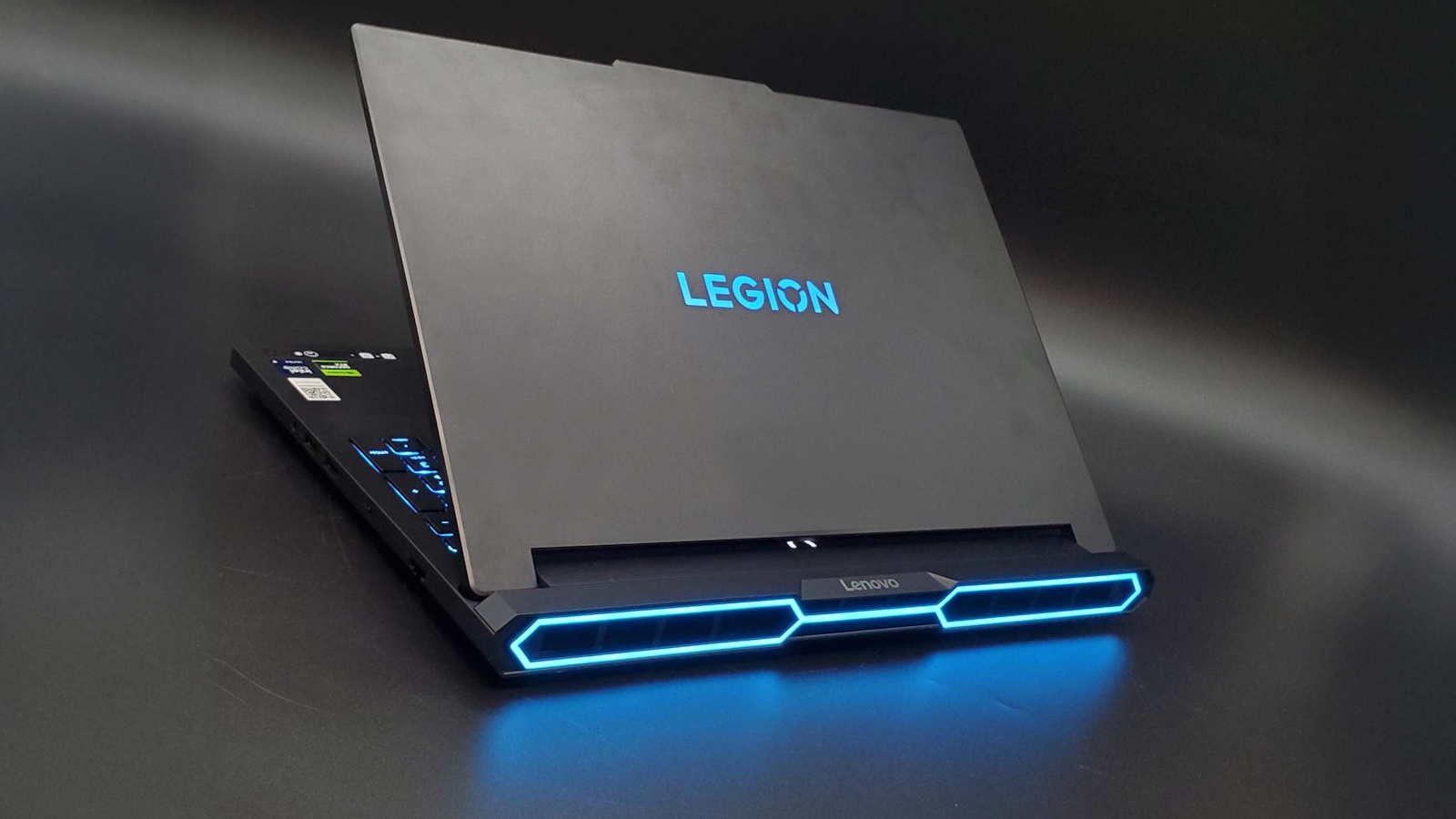
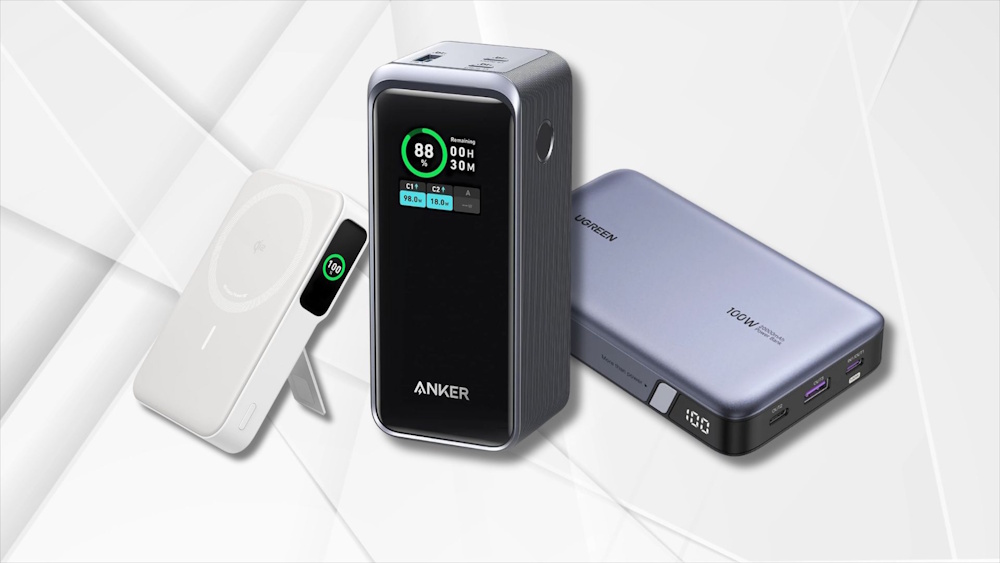




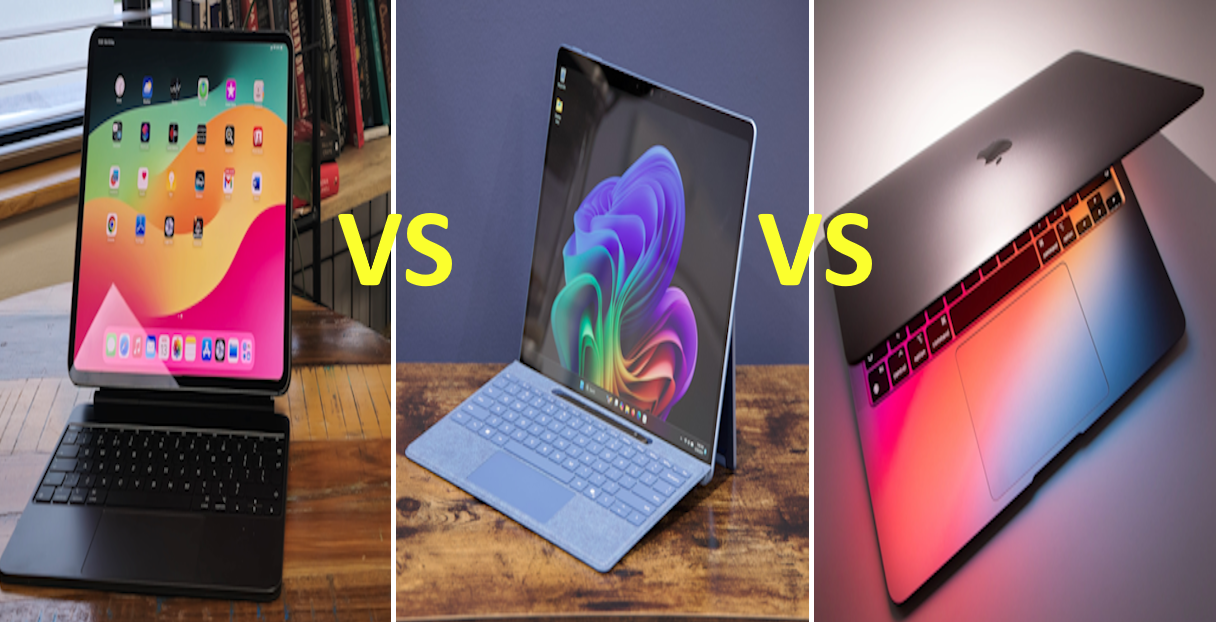





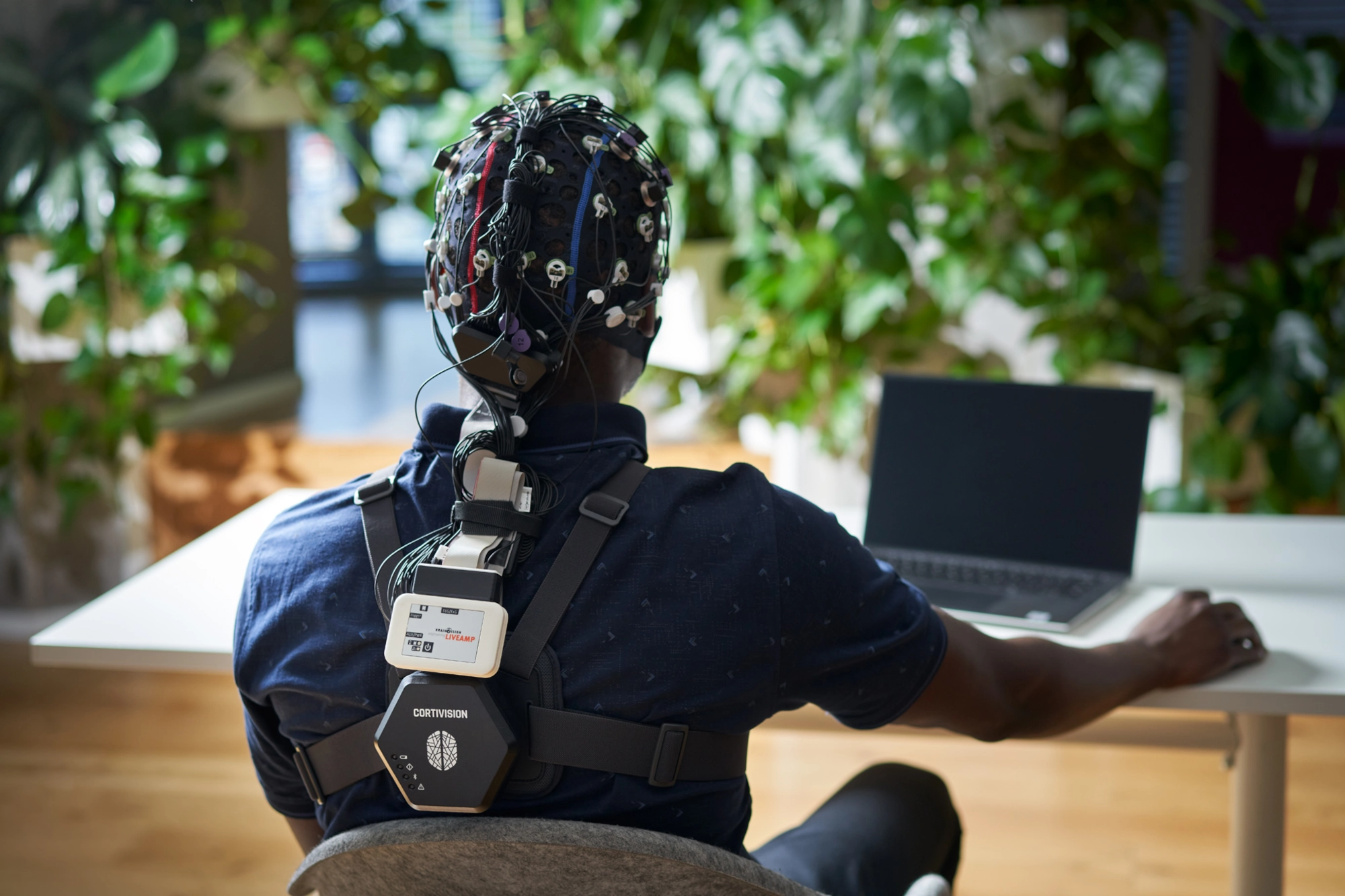
Tags
📧 Get More Articles Like This
Subscribe to receive product reviews and buying guides in your inbox!
We respect your privacy. Unsubscribe at any time.